> ## Documentation Index
> Fetch the complete documentation index at: https://docs.testdino.com/llms.txt
> Use this file to discover all available pages before exploring further.
# Get Started with TestDino
> Set up TestDino and stream your first Playwright test run live in five minutes, from API key to verified results.
export const HowToSchema = ({name, description, steps = []}) => {
const schema = {
"@context": "https://schema.org",
"@type": "HowTo",
name,
...description ? {
description
} : {},
step: steps.map(({name: stepName, text}, i) => ({
"@type": "HowToStep",
position: i + 1,
name: stepName,
text
}))
};
return ;
};
Stream Playwright results, traces, screenshots, and videos to TestDino. Paste the AI prompt below into your coding agent, or follow the manual steps.
## Prerequisites
* A TestDino account
* A Playwright project with tests (or the TestDino Example Repository )
* Node.js `>= 18` and `@playwright/test` `>= 1.52`
* A project API key from [Generate API Keys](/guides/generate-api-keys) (agents need `TESTDINO_TOKEN` set)
## Set up with an AI agent
Paste this into Cursor, Claude Code, or another coding assistant:
Integrate TestDino into this Playwright (Node.js) project so test results stream live via @testdino/playwright.
**Prerequisites**
* TestDino API key from [https://app.testdino.com](https://app.testdino.com) (Project Settings → API Keys)
* Store the key in the environment variable TESTDINO\_TOKEN. Never hardcode it.
**1. Install**
```bash theme={null}
npm install @testdino/playwright
```
**2. Add TestDino to playwright.config.ts|js|mjs, keeping any existing reporter entries:**
```typescript theme={null}
import { defineConfig } from '@playwright/test';
export default defineConfig({
reporter: [
['@testdino/playwright', {
token: process.env.TESTDINO_TOKEN,
serverUrl: "https://reporter.testdino.com",
}],
],
});
```
**3. Run the tests:**
```bash theme={null}
export TESTDINO_TOKEN=your-api-key
npx playwright test
```
**Rules**
* Read the token from process.env.TESTDINO\_TOKEN. Never hardcode or commit a real token.
* Do not add a post-run upload step. Results stream during the run.
Full docs: [https://docs.testdino.com/llms-full.txt](https://docs.testdino.com/llms-full.txt)
After the agent finishes, open **Test Runs** in TestDino and confirm the run appears. MCP, docs grounding, and more prompts: [AI Onboarding](/ai-onboarding).
## Set up your first project
Follow these steps if you prefer to configure TestDino yourself.
After signup and onboarding, click **New Project**.
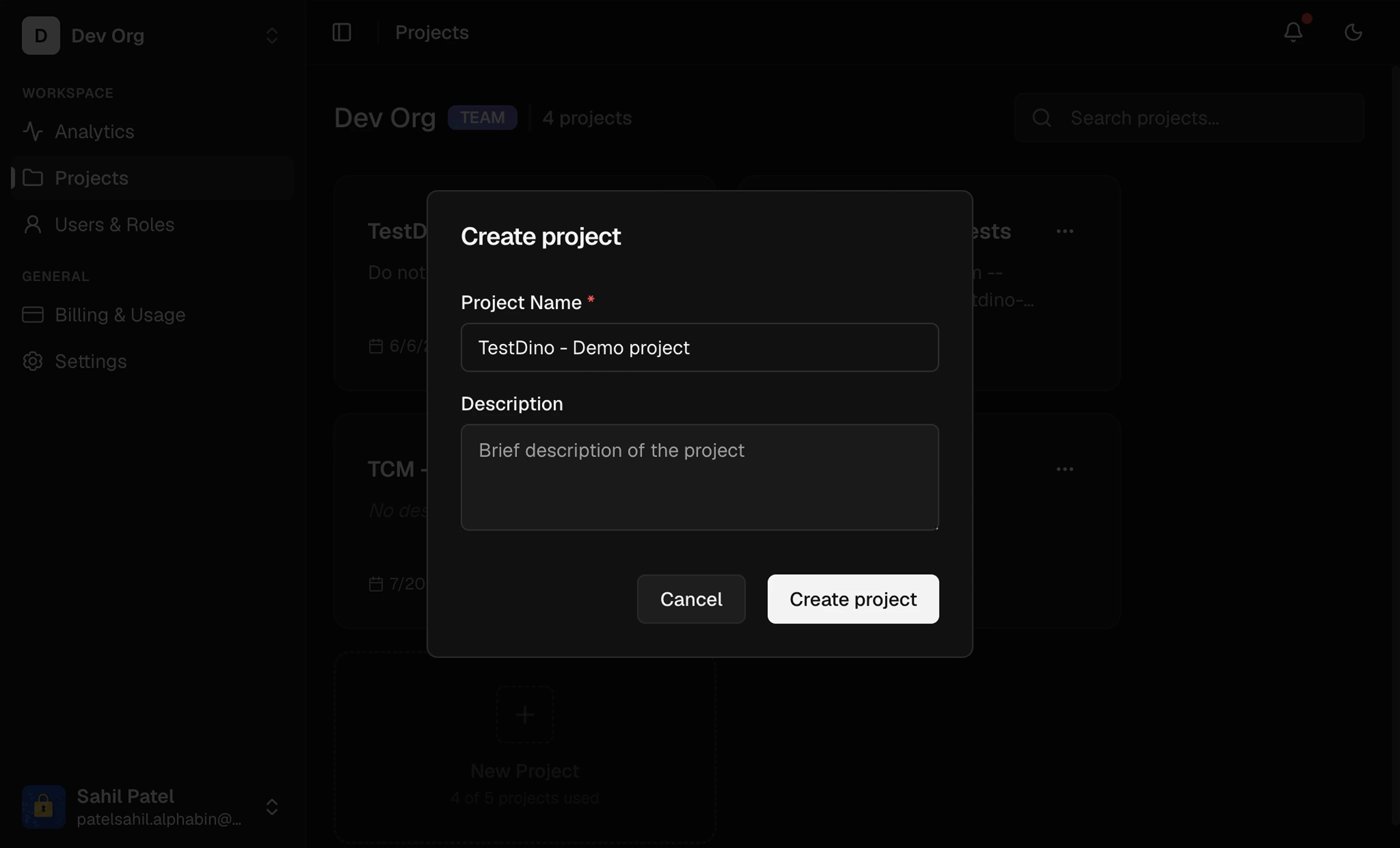 Go to **Project Settings → API Keys** and create a new key. Copy it once; it is shown only at creation. Full key options are in [Generate API Keys](/guides/generate-api-keys).
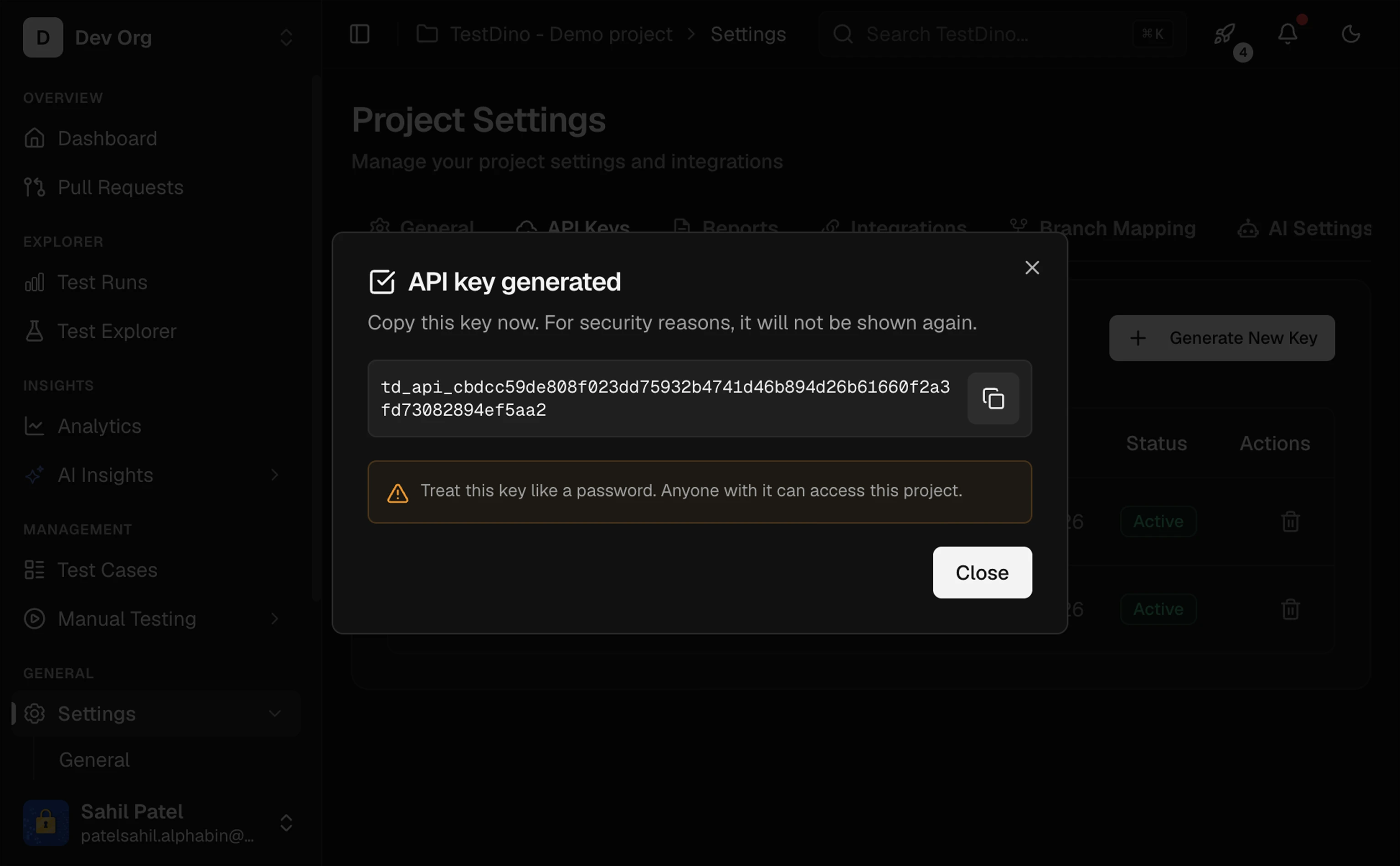 Store the key in `TESTDINO_TOKEN`:
```bash theme={null}
export TESTDINO_TOKEN="your-api-key"
```
Never hardcode the key in source. In CI, store it as a secret named `TESTDINO_TOKEN`.
```bash theme={null}
npm install @testdino/playwright
```
View the package on [npm](https://www.npmjs.com/package/@testdino/playwright).
Add `@testdino/playwright` to the `reporter` array. Keep any existing reporters you already use.
```typescript playwright.config.ts theme={null}
import { defineConfig } from '@playwright/test';
export default defineConfig({
reporter: [
['@testdino/playwright', {
token: process.env.TESTDINO_TOKEN,
serverUrl: "https://reporter.testdino.com",
}],
],
});
```
Run `tdpw test` instead of `npx playwright test`:
```bash theme={null}
npx tdpw test -t "$TESTDINO_TOKEN" --server-url https://reporter.testdino.com
```
Playwright flags pass through, for example `npx tdpw test --project=chromium --shard=1/3`.
```bash theme={null}
npx playwright test
```
Results stream during the run. No separate upload step.
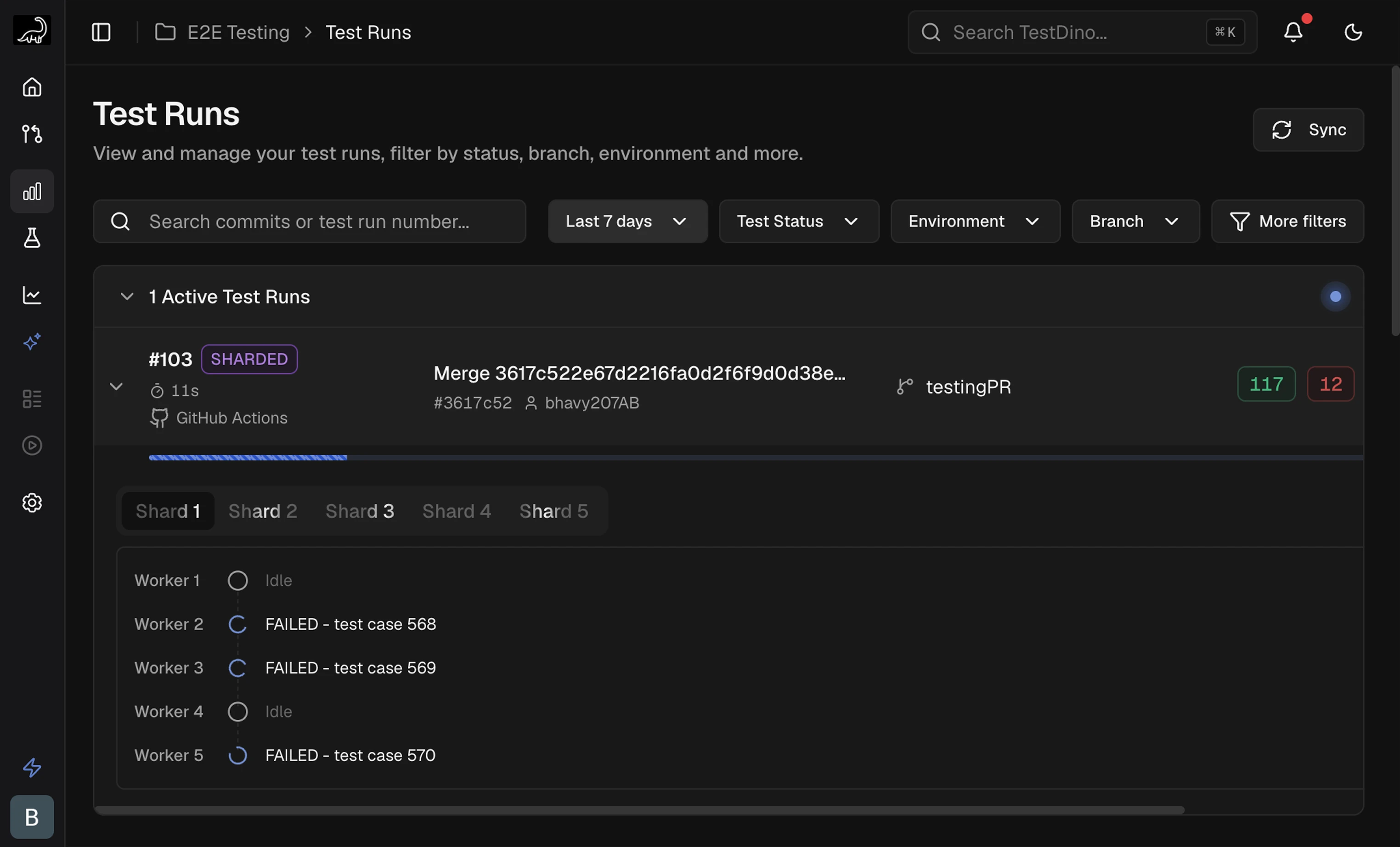
Open **Test Runs**. Your run appears at the top with pass/fail counts, duration, and links to traces and screenshots.
Store the key in `TESTDINO_TOKEN`:
```bash theme={null}
export TESTDINO_TOKEN="your-api-key"
```
Never hardcode the key in source. In CI, store it as a secret named `TESTDINO_TOKEN`.
```bash theme={null}
npm install @testdino/playwright
```
View the package on [npm](https://www.npmjs.com/package/@testdino/playwright).
Add `@testdino/playwright` to the `reporter` array. Keep any existing reporters you already use.
```typescript playwright.config.ts theme={null}
import { defineConfig } from '@playwright/test';
export default defineConfig({
reporter: [
['@testdino/playwright', {
token: process.env.TESTDINO_TOKEN,
serverUrl: "https://reporter.testdino.com",
}],
],
});
```
Run `tdpw test` instead of `npx playwright test`:
```bash theme={null}
npx tdpw test -t "$TESTDINO_TOKEN" --server-url https://reporter.testdino.com
```
Playwright flags pass through, for example `npx tdpw test --project=chromium --shard=1/3`.
```bash theme={null}
npx playwright test
```
Results stream during the run. No separate upload step.
Open **Test Runs**. Your run appears at the top with pass/fail counts, duration, and links to traces and screenshots.
 No run showing up? Confirm `TESTDINO_TOKEN` is set and `@testdino/playwright` is in your `reporter` array. See [FAQs](/faqs) and [Troubleshooting](/guides/troubleshooting-playwright).
Stream results from GitHub, GitLab, Azure DevOps, and more
Create and store project API keys
Query test data from an AI assistant
Slack, Jira, GitHub, and more
No run showing up? Confirm `TESTDINO_TOKEN` is set and `@testdino/playwright` is in your `reporter` array. See [FAQs](/faqs) and [Troubleshooting](/guides/troubleshooting-playwright).
Stream results from GitHub, GitLab, Azure DevOps, and more
Create and store project API keys
Query test data from an AI assistant
Slack, Jira, GitHub, and more