> ## Documentation Index
> Fetch the complete documentation index at: https://docs.testdino.com/llms.txt
> Use this file to discover all available pages before exploring further.
# Generate TestDino API Keys
> Create and manage API keys for streaming Playwright test results.
Create a project API key to stream Playwright test results to TestDino. Use a Personal Access Token (PAT) only for the Public API and MCP.
| Credential | Use for | Create in | Prefix |
| :------------------------------ | :--------------------------------- | :------------------------------------- | :-------- |
| **API Key** | Streaming test results, CI uploads | Project Settings → API Keys | `td_api_` |
| **Personal Access Token (PAT)** | Public API and MCP | User Settings → Personal Access Tokens | `td_pat_` |
If you don't see the **API Keys** tab, open a project first. Org Settings has no API Keys tab.
## Set up with an AI agent
Paste this into Cursor, Claude Code, or another assistant after you have created a key in the UI:
I have a TestDino project API key. Wire it into this Playwright project.
**Rules**
* Store the key only in the environment variable TESTDINO\_TOKEN. Never hardcode or commit it.
* Add @testdino/playwright to the reporter array in playwright.config.ts|js|mjs with token: process.env.TESTDINO\_TOKEN and serverUrl: "[https://reporter.testdino.com](https://reporter.testdino.com)".
* For CI, add a secret named TESTDINO\_TOKEN and expose it to the test step.
* Do not add a post-run upload step. Results stream during the run.
Docs: [https://docs.testdino.com/guides/generate-api-keys.md](https://docs.testdino.com/guides/generate-api-keys.md)
Full setup: [https://docs.testdino.com/getting-started.md](https://docs.testdino.com/getting-started.md)
First-time project setup with the full agent prompt: [Getting Started](/getting-started). MCP and PAT flows: [AI Onboarding](/ai-onboarding).
## Create an API key
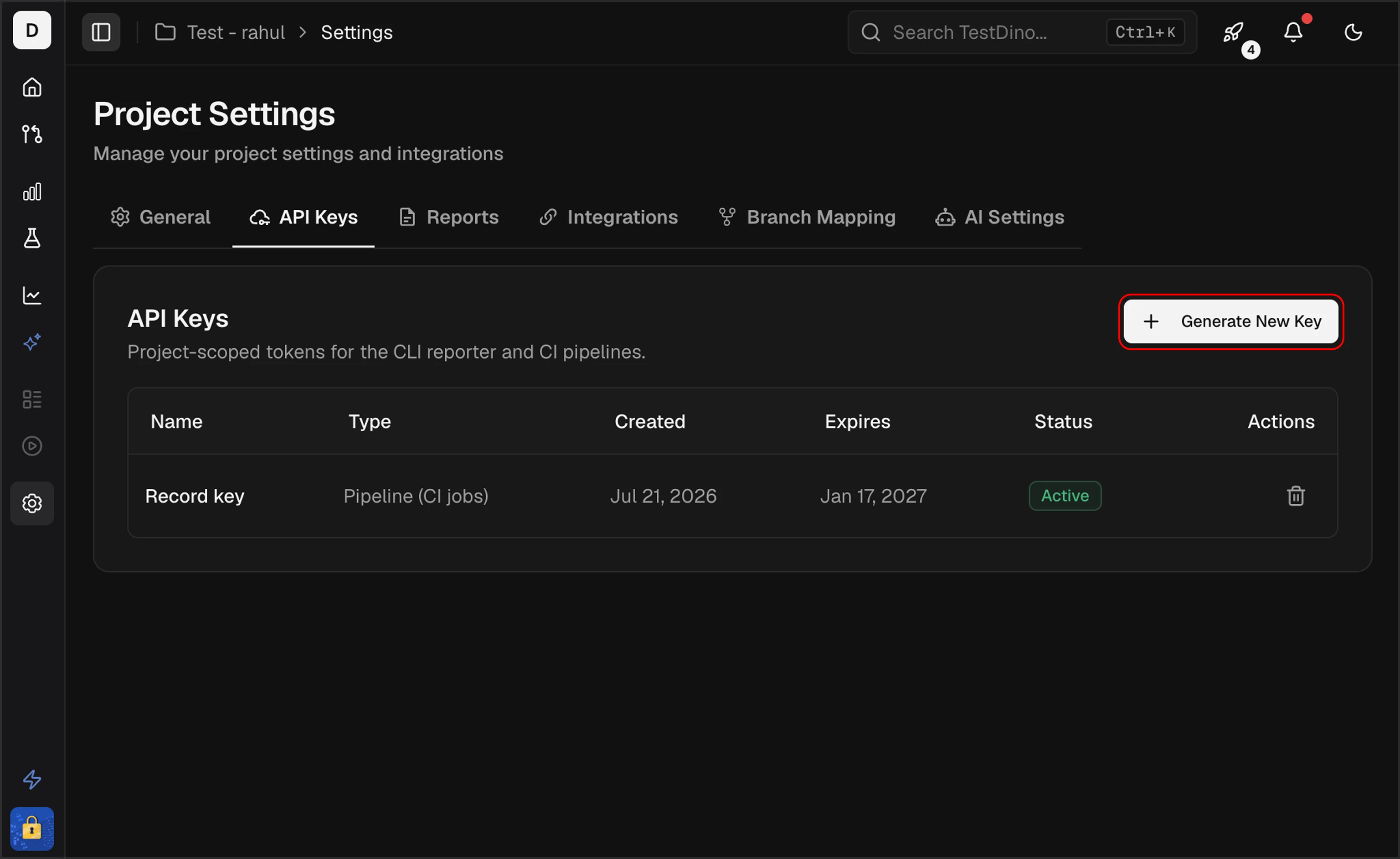 1. Open your project in TestDino
2. Go to **Project Settings → API Keys**
3. In **Keys & Tokens**, click **+ New → API Key**
4. Enter a **Key Name**, pick a **Type** (**Ingestion** for local or CI uploads, **Pipeline** for Azure DevOps and TeamCity plugins), and choose an **Expiration** of 30, 60, 90, or 180 days
5. Click **Create API Key**
1. Open your project in TestDino
2. Go to **Project Settings → API Keys**
3. In **Keys & Tokens**, click **+ New → API Key**
4. Enter a **Key Name**, pick a **Type** (**Ingestion** for local or CI uploads, **Pipeline** for Azure DevOps and TeamCity plugins), and choose an **Expiration** of 30, 60, 90, or 180 days
5. Click **Create API Key**
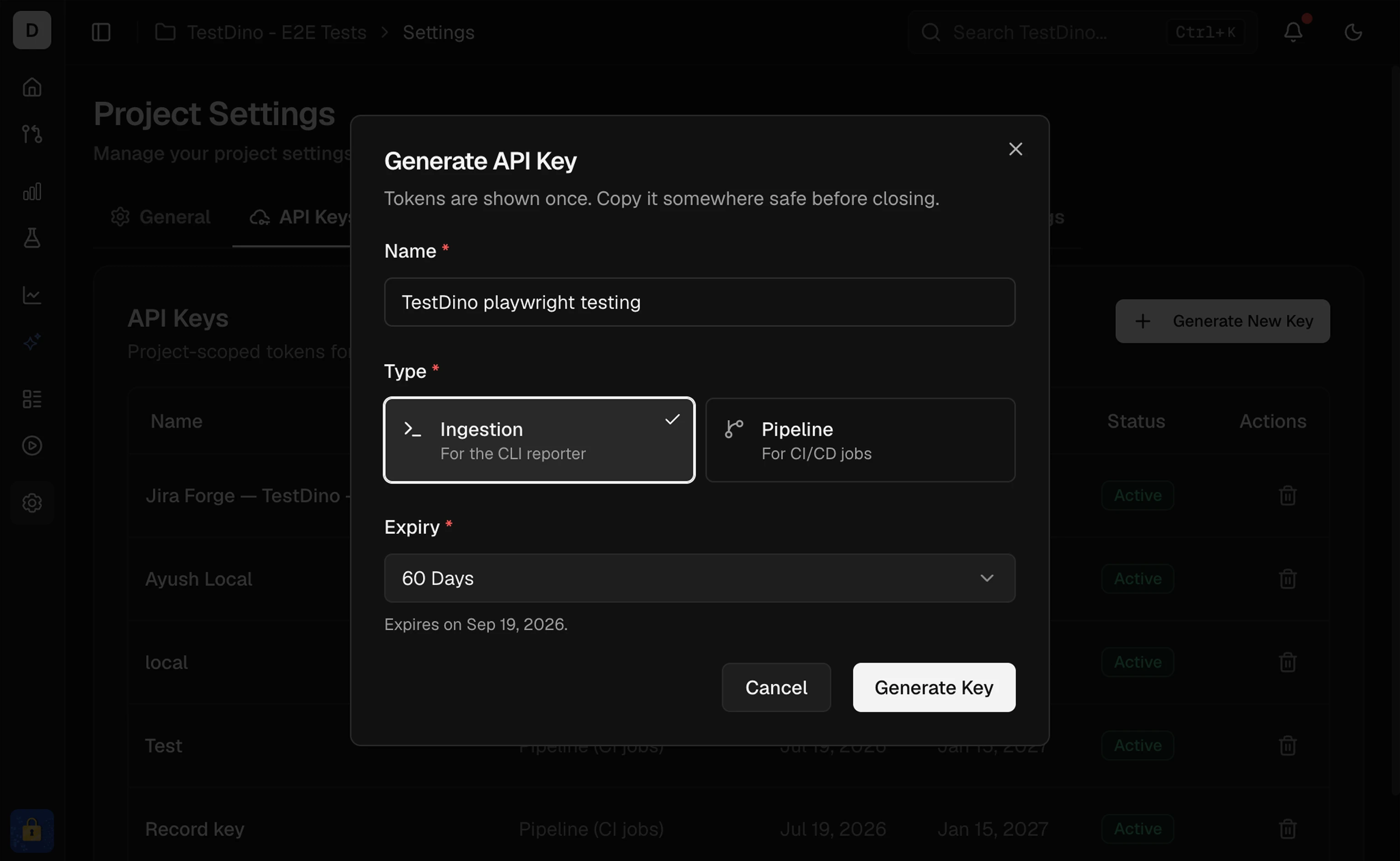 The key is shown once. Copy it and store it as `TESTDINO_TOKEN`.
For the Azure DevOps Extension, create **+ New → Access Token** instead. Same `td_api_` project key type; the UI label differs.
## Use the key
Set `TESTDINO_TOKEN`, then run your tests. Results stream during the run:
```bash theme={null}
export TESTDINO_TOKEN="your-api-key"
npx playwright test
```
Reference the env var in Playwright config:
```typescript playwright.config.ts theme={null}
import { defineConfig } from '@playwright/test';
export default defineConfig({
reporter: [
['@testdino/playwright', {
token: process.env.TESTDINO_TOKEN,
serverUrl: "https://reporter.testdino.com",
}],
],
});
```
## Store the key in CI
Never hardcode API keys in workflow files. Store them as secrets and expose `TESTDINO_TOKEN` to the test step. Full pipeline configs are in [CI Setup](/guides/ci-setup-overview).
1. Go to your repository → **Settings → Secrets and variables → Actions**
2. Click **New repository secret**
3. Name it `TESTDINO_TOKEN`
4. Paste your API key
5. Click **Add secret**
```yaml theme={null}
- name: Run Playwright tests
env:
TESTDINO_TOKEN: ${{ secrets.TESTDINO_TOKEN }}
run: npx playwright test
```
1. Go to your project → **Settings → CI/CD → Variables**
2. Click **Add variable**
3. Set Key to `TESTDINO_TOKEN`
4. Paste your API key in Value
5. Check **Mask variable** to hide it in logs
6. Click **Add variable**
1. Go to **Manage Jenkins → Credentials**
2. Select your domain (or global)
3. Click **Add Credentials**
4. Choose **Secret text**
5. Set ID to `TESTDINO_TOKEN`
6. Paste your API key in Secret
1. Go to **Pipelines → Library**
2. Create or open a variable group
3. Add a variable named `TESTDINO_TOKEN`
4. Paste your API key
5. Click the lock icon to make it secret
1. Go to **Project Settings → Environment Variables**
2. Click **Add Environment Variable**
3. Name it `TESTDINO_TOKEN`
4. Paste your API key
## Create a Personal Access Token
Use a PAT for the [Public API](/api-reference/overview) and [MCP](/mcp/remote). It is a user credential that reaches the organizations and projects you select at creation.
The key is shown once. Copy it and store it as `TESTDINO_TOKEN`.
For the Azure DevOps Extension, create **+ New → Access Token** instead. Same `td_api_` project key type; the UI label differs.
## Use the key
Set `TESTDINO_TOKEN`, then run your tests. Results stream during the run:
```bash theme={null}
export TESTDINO_TOKEN="your-api-key"
npx playwright test
```
Reference the env var in Playwright config:
```typescript playwright.config.ts theme={null}
import { defineConfig } from '@playwright/test';
export default defineConfig({
reporter: [
['@testdino/playwright', {
token: process.env.TESTDINO_TOKEN,
serverUrl: "https://reporter.testdino.com",
}],
],
});
```
## Store the key in CI
Never hardcode API keys in workflow files. Store them as secrets and expose `TESTDINO_TOKEN` to the test step. Full pipeline configs are in [CI Setup](/guides/ci-setup-overview).
1. Go to your repository → **Settings → Secrets and variables → Actions**
2. Click **New repository secret**
3. Name it `TESTDINO_TOKEN`
4. Paste your API key
5. Click **Add secret**
```yaml theme={null}
- name: Run Playwright tests
env:
TESTDINO_TOKEN: ${{ secrets.TESTDINO_TOKEN }}
run: npx playwright test
```
1. Go to your project → **Settings → CI/CD → Variables**
2. Click **Add variable**
3. Set Key to `TESTDINO_TOKEN`
4. Paste your API key in Value
5. Check **Mask variable** to hide it in logs
6. Click **Add variable**
1. Go to **Manage Jenkins → Credentials**
2. Select your domain (or global)
3. Click **Add Credentials**
4. Choose **Secret text**
5. Set ID to `TESTDINO_TOKEN`
6. Paste your API key in Secret
1. Go to **Pipelines → Library**
2. Create or open a variable group
3. Add a variable named `TESTDINO_TOKEN`
4. Paste your API key
5. Click the lock icon to make it secret
1. Go to **Project Settings → Environment Variables**
2. Click **Add Environment Variable**
3. Name it `TESTDINO_TOKEN`
4. Paste your API key
## Create a Personal Access Token
Use a PAT for the [Public API](/api-reference/overview) and [MCP](/mcp/remote). It is a user credential that reaches the organizations and projects you select at creation.
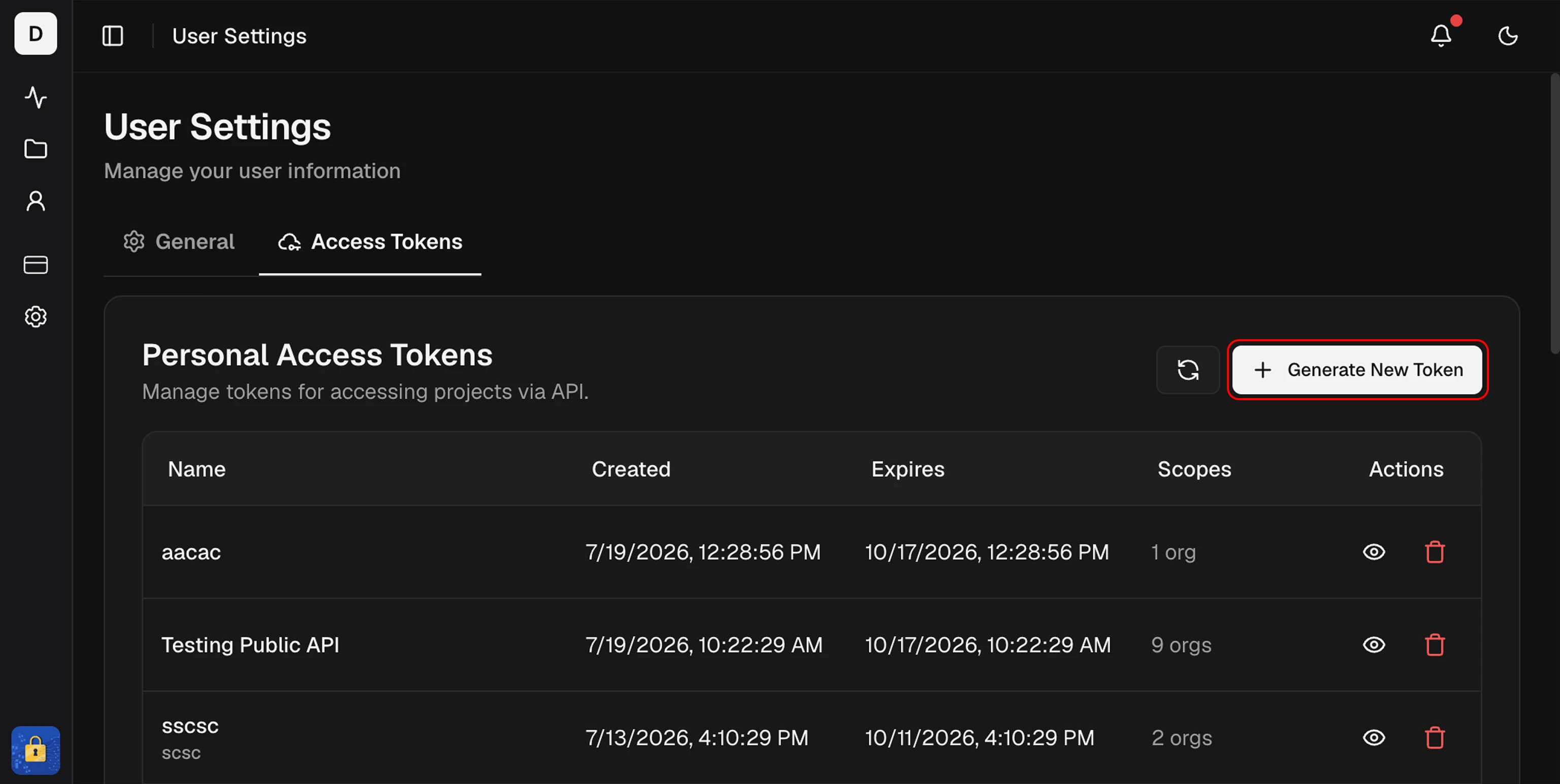 1. Open your profile → **User Settings → Personal Access Tokens**
2. Click **Generate new token**
3. Enter a **Token Name**, select organizations and projects, choose an **Expiration**, and create it
1. Open your profile → **User Settings → Personal Access Tokens**
2. Click **Generate new token**
3. Enter a **Token Name**, select organizations and projects, choose an **Expiration**, and create it
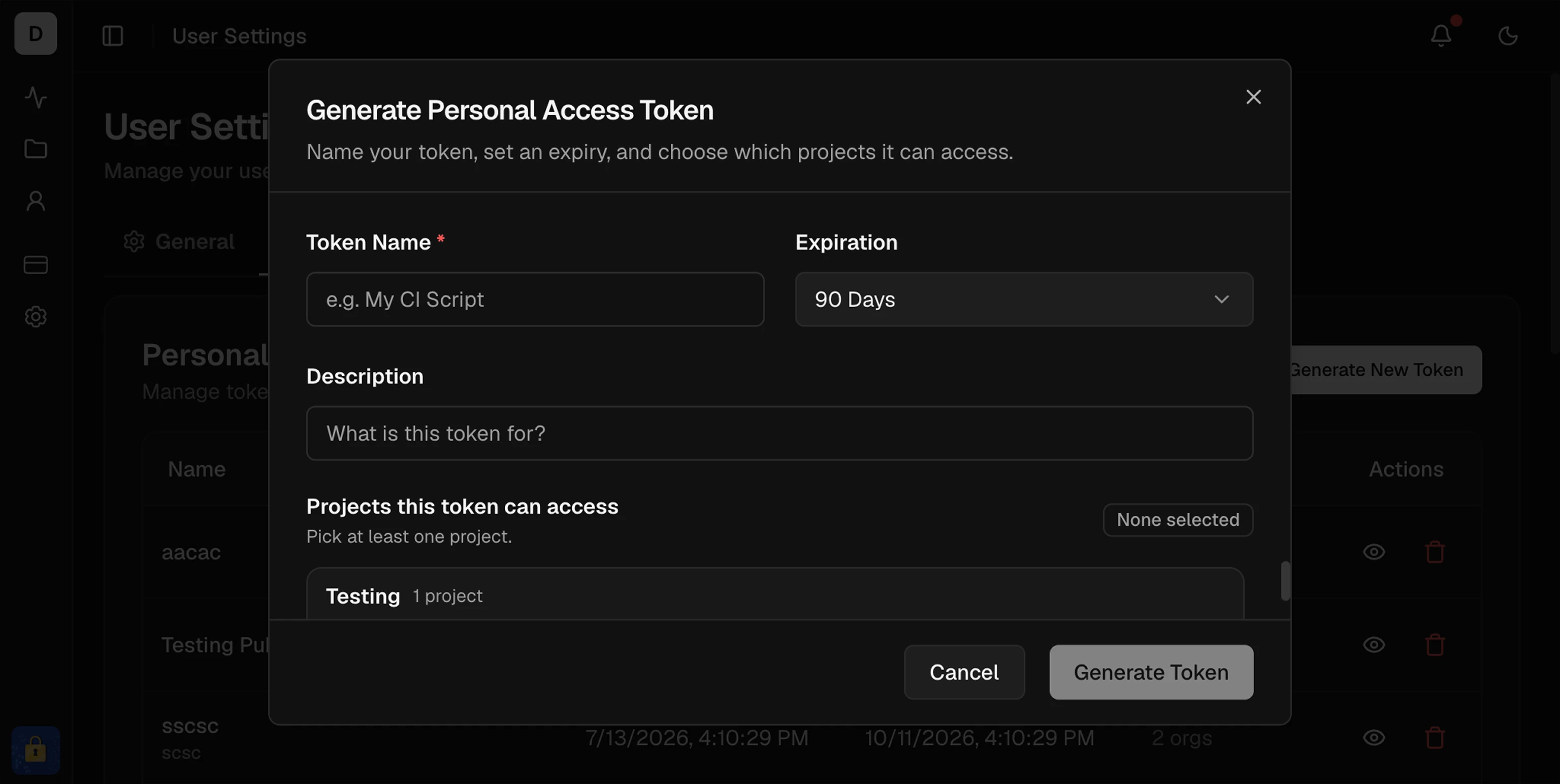 The `td_pat_` token is shown once. Use it as `Authorization: Bearer td_pat_...`.
Prefer short expirations for CI. Use separate keys per pipeline or environment. Never commit keys to version control. When a key expires or is exposed, create a new key, update your secret, then delete the old one.
Install @testdino/playwright and stream your first run
Stream results in GitHub, GitLab, Azure DevOps, and more
Use a PAT to query test data over the API
All project configuration
The `td_pat_` token is shown once. Use it as `Authorization: Bearer td_pat_...`.
Prefer short expirations for CI. Use separate keys per pipeline or environment. Never commit keys to version control. When a key expires or is exposed, create a new key, update your secret, then delete the old one.
Install @testdino/playwright and stream your first run
Stream results in GitHub, GitLab, Azure DevOps, and more
Use a PAT to query test data over the API
All project configuration