> ## Documentation Index
> Fetch the complete documentation index at: https://docs.testdino.com/llms.txt
> Use this file to discover all available pages before exploring further.
# Local MCP Server
> Bring TestDino into Claude Code, Cursor, or Claude Desktop. Query test runs and manual cases in chat.
export const HowToSchema = ({name, description, steps = []}) => {
const schema = {
"@context": "https://schema.org",
"@type": "HowTo",
name,
...description ? {
description
} : {},
step: steps.map(({name: stepName, text}, i) => ({
"@type": "HowToStep",
position: i + 1,
name: stepName,
text
}))
};
return ;
};
export const VideoSchema = ({name, description, thumbnailUrl, uploadDate, duration, contentUrl, embedUrl}) => {
const schema = {
"@context": "https://schema.org",
"@type": "VideoObject",
name,
description,
thumbnailUrl,
uploadDate,
...duration ? {
duration
} : {},
...contentUrl ? {
contentUrl
} : {},
...embedUrl ? {
embedUrl
} : {},
publisher: {
"@type": "Organization",
name: "TestDino",
logo: {
"@type": "ImageObject",
url: "https://docs.testdino.com/logo/light.svg"
}
}
};
return ;
};
Run the TestDino MCP server as a local process over stdio. Your AI assistant starts `testdino-mcp` and authenticates with a Personal Access Token.
Using Claude on the web or ChatGPT? Skip the install and use [Remote MCP Server](/mcp/remote).
## Prerequisites
* Sign in to [TestDino](https://app.testdino.com)
* Node.js installed (`npx` available)
* An MCP client: Claude Code, Cursor, or Claude Desktop
## Create a Personal Access Token
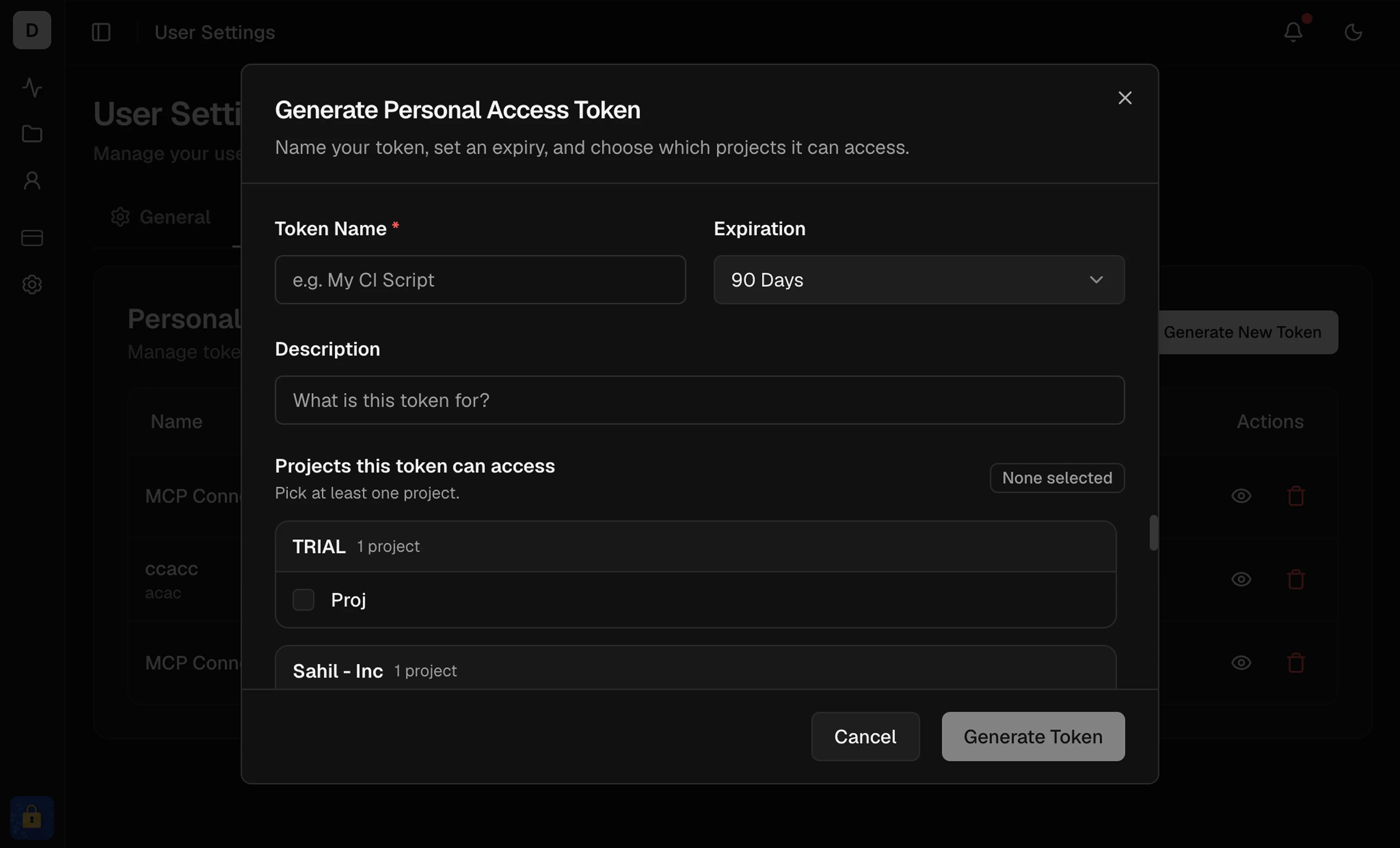
The server reads the token from `TESTDINO_PAT`. Create a PAT under **User Settings → Personal Access Tokens**, grant at least one project, and copy it once. Steps and screenshots: [Generate API Keys → Personal Access Token](/guides/generate-api-keys#create-a-personal-access-token).
The token is shown once. Store it in a password manager. Never commit it to Git. Revoke tokens you no longer use.
## Choose an install method
| Method | Best for |
| :-------------------------------------------------- | :---------------------------------------------------- |
| [Set up with an AI agent](#set-up-with-an-ai-agent) | Assistants with terminal access (Claude Code, Cursor) |
| [Manual setup](#manual-setup) | Editing the client config yourself, or Claude Desktop |
## Set up with an AI agent
Install the TestDino MCP server (npm package "testdino-mcp") for this project.
Run it with: npx -y testdino-mcp\@latest
Pass my token through the TESTDINO\_PAT environment variable, not a CLI flag.
My token is: your-token
Then run the health tool and show me my projects.
The assistant adds the server to the client config, restarts if needed, then calls `health`.
The assistant writes your token into the client config. Use a scoped token and never paste it into a shared or logged session.
## Manual setup
```bash theme={null}
npx -y testdino-mcp@latest
```
Or install globally: `npm install -g testdino-mcp`.
```bash theme={null}
claude mcp add testdino --env TESTDINO_PAT=your-token -- npx -y testdino-mcp@latest
```
Verify with `claude mcp list`. You should see `testdino` connected.
1. Open **Cursor settings → Tools & MCP → Add MCP server**
2. Edit the config (project: `.cursor/mcp.json`, or user: `~/.cursor/mcp.json`):
```json .cursor/mcp.json theme={null}
{
"mcpServers": {
"TestDino": {
"command": "npx",
"args": ["-y", "testdino-mcp@latest"],
"env": {
"TESTDINO_PAT": "td_pat_your_token_here"
}
}
}
}
```
3. Quit and reopen Cursor
4. Confirm **TestDino** appears under **Settings → MCP**
Edit the config file:
* macOS: `~/Library/Application Support/Claude/claude_desktop_config.json`
* Windows: `%APPDATA%\Claude\claude_desktop_config.json`
* Linux: `~/.config/Claude/claude_desktop_config.json`
```json claude_desktop_config.json theme={null}
{
"mcpServers": {
"TestDino": {
"command": "npx",
"args": ["-y", "testdino-mcp@latest"],
"env": {
"TESTDINO_PAT": "td_pat_your_token_here"
}
}
}
}
```
Restart Claude Desktop.
Ask your assistant to run `health` and confirm it lists your organizations and projects. A successful response includes account, orgs, and `projectId` values. Most query tools need a `projectId`.
If `health` fails, see [Troubleshooting](/mcp/troubleshooting).
Parameters and examples for every tool
Connection and auth errors
Wrap the local server as a chat bot
Hosted MCP for ChatGPT and Claude on the web