

Quick Reference
| Setting | Default | Options |
|---|---|---|
| Frequency | Weekly | Daily, Weekly, Monthly |
| Time (UTC) | 08:00 | 00:00 to 23:00 |
| Day of Week | Monday | Sunday to Saturday (Weekly only) |
| Lookback Period | 7 days | 1 to 30 days |
| Recipients | None | To, CC, BCC per address |
Report Contents
Each generated PDF includes the following sections. View sample report (PDF)| Section | Description |
|---|---|
| Executive Summary | Pass rates, failure trends, and test result breakdowns |
| Test Case Analysis | Slowest, most-failing, and flaky tests |
| Branch Statistics | Performance grouped by branch and contributor |
| Trend Graphs | Visual charts of test health over the lookback period |
Set Up a Report
Open Automated Reports
Go to Project Settings and scroll to Automated Reports. Click Create Automated Report.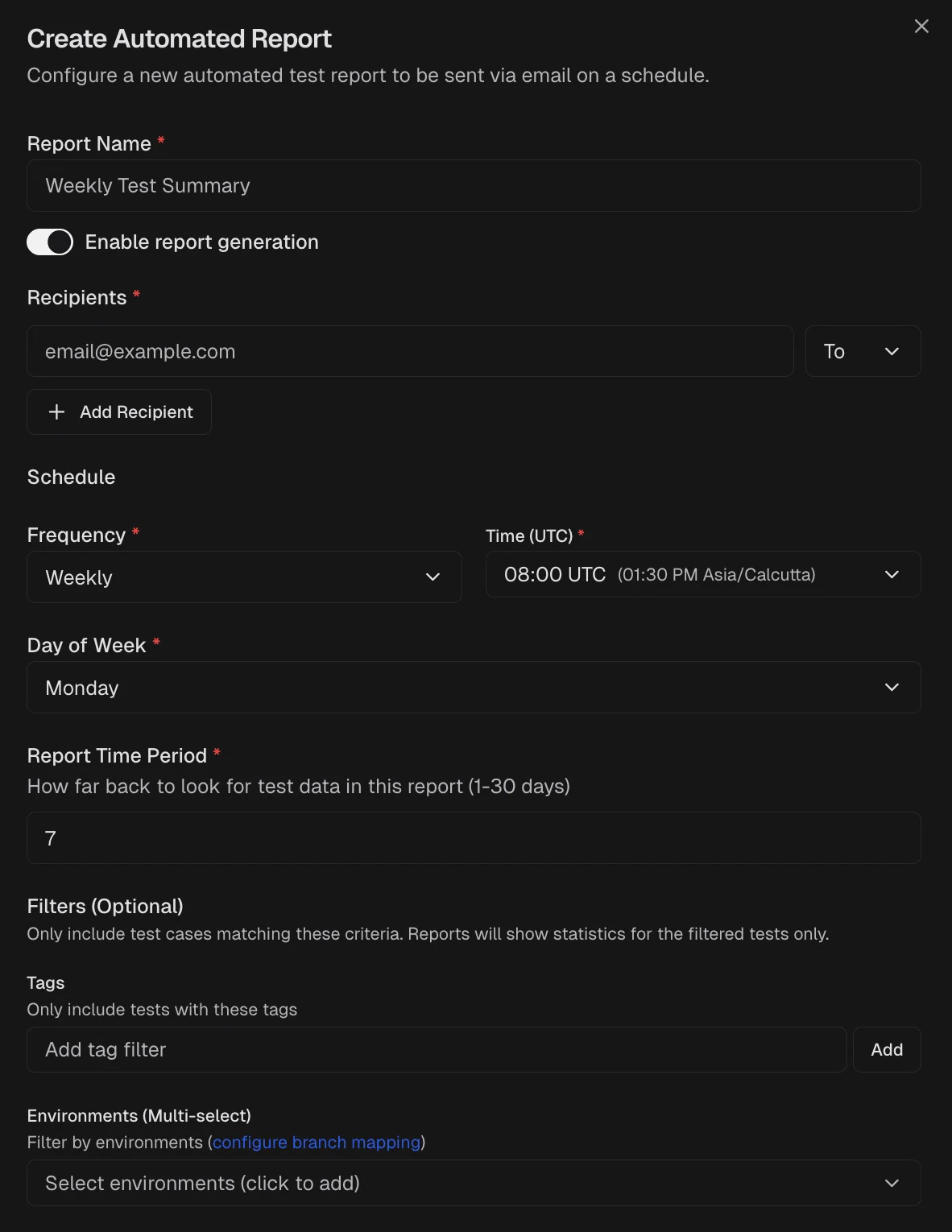
Add recipients
Enter one or more email addresses. Use the type selector to assign each recipient as To, CC, or BCC.Click the add button or press Enter to add each address. Remove a recipient with the X button next to their entry.
Configure the schedule
Select the report frequency, time (UTC), and lookback period.
| Setting | Detail |
|---|---|
| Frequency | Daily, Weekly, or Monthly |
| Time (UTC) | Hour the report generates (local timezone shown in the dropdown) |
| Day of Week | Visible only for Weekly frequency |
| Report Time Period | Number of days to include (1 to 30) |
Apply filters (optional)
Narrow the report scope by adding tag or environment filters.
- Tags: Type a tag name and click Add or press Enter. Multiple tags are supported.
- Environment: Select from environments defined in your branch mapping.
Manage Reports
Preview
Click Preview to download a sample PDF before the first scheduled send. The PDF uses a timestamped filename.Edit
Click Edit on any report to update recipients, schedule, filters, or the lookback period. All fields are pre-populated with the current configuration.Pause and Resume
Use Pause to temporarily stop a report from generating. Click Resume to re-enable it. Paused reports retain their configuration.Delete
Click Delete to permanently remove a report configuration. This action cannot be undone.Schedule Behavior
- All schedule times use UTC. The dropdown displays the equivalent local time in parentheses.
- The lookback period defines how many days of data the report covers. A 7-day lookback on a weekly report covers the previous full week.
- Reports generate at the configured hour and are delivered shortly after.