


How does it work?
- Sends run summaries (status, counts, duration, environment/branch, author, commit).
- Routes notifications by environment to specific channels; unmatched events fall back to a default channel.
- Sends annotation-based alerts when tests with
testdino:notify-slackfail, routed to specific channels or users. - Supports test posts for verification and quick reconfiguration.
Quick Start Steps
1. Connect Slack
In Project → Integrations → Slack App, click Connect to Slack and complete the OAuth flow.2. Map channels
In the Slack Channel Configuration settings, set a default channel for all alerts.3. Add Environment mappings
Under Environment Alert Channel Mapping, assign specific Slack channels to your project environments (e.g., PROD, STAGE). Notifications for runs in these environments will be routed accordingly.4. Save configuration
Save the configurations and use Test to send a sample message.Configuration Scenarios
The integration supports both default and environment-based channel configurations, giving you control over how alerts are delivered.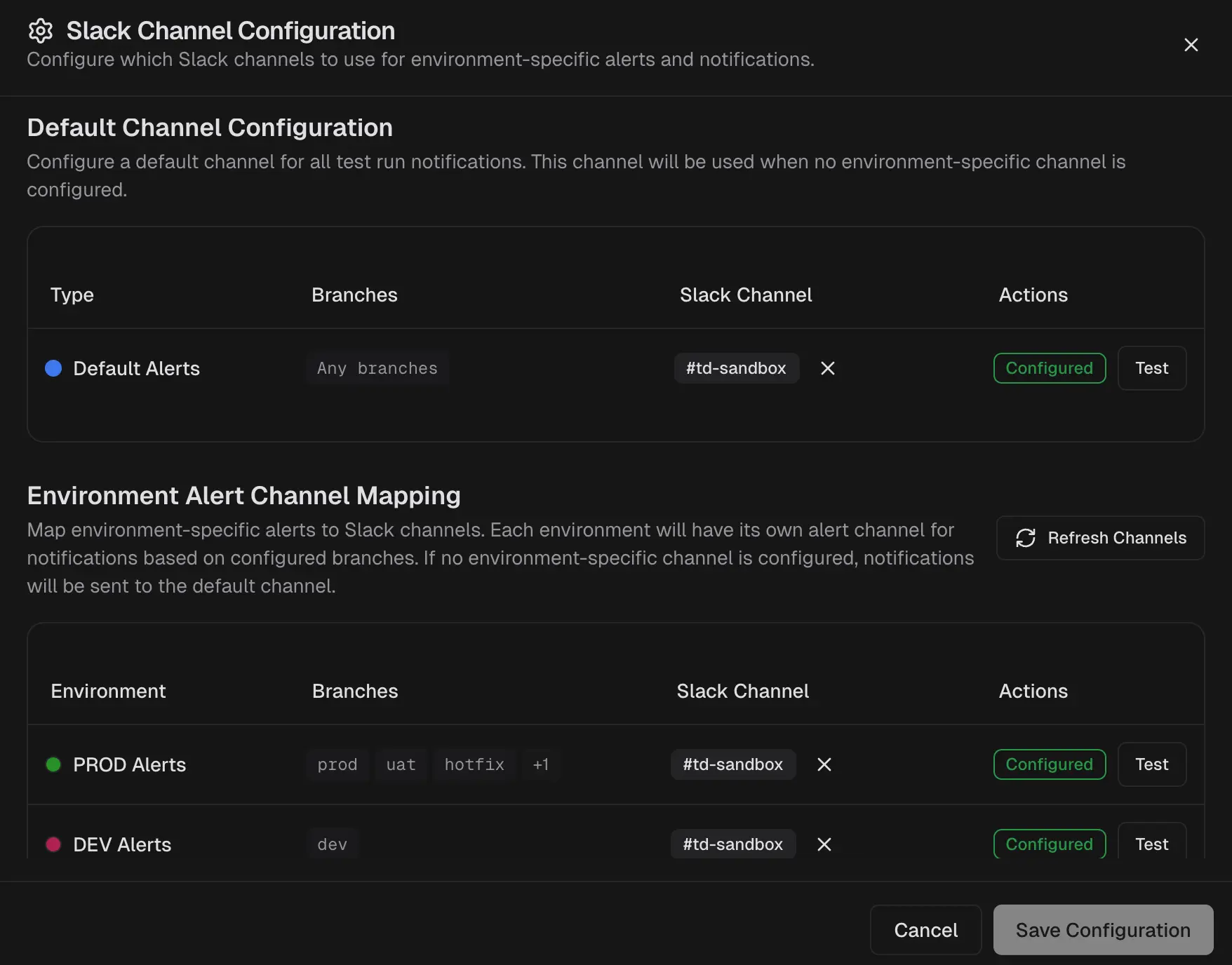
1. Default Channel Only
All test run alerts, regardless of the branch or environment, are sent to a single default channel. This is useful for centralizing all notifications.2. Default + Environment-Specific Channels
Alerts for mapped environments (e.g., PROD Alerts) are sent to their designated channel (e.g., #prod-alerts). All alerts from unmapped branches or environments automatically fall back to the default channel (e.g., #daily-updates).Why this helps
- Reduce notification noise by routing alerts to environment-specific channels so teams see only relevant updates.
- Improve incident response by sending critical failure alerts directly to the responsible team’s channel.
- Enable faster triage with real-time summaries that link directly to detailed test evidence.
Annotation-Based Alerts
Beyond run-level alerts, the Slack App can notify specific channels or users when individual tests fail. This is driven by thetestdino:notify-slack annotation in your Playwright test code.
For example, if a test has testdino:notify-slack set to @ashish, and that test fails, TestDino sends a Slack message directly to Ashish. This is different from test run alerts, which fire on every run completion regardless of which tests failed.
How to set it up
- Add a
testdino:notify-slackannotation to your test with a channel (#e2e-alerts) or user (@ashish) as the target. - In the Slack Notification Configuration dialog, switch to the Annotation Alerts tab.
- Map each annotation target to a Slack channel or user from your workspace.
- Save the configuration.
Annotation-Slack mappings are stored at the integration level. If you disconnect the Slack App, all mappings are deleted and need to be set up again after reconnecting.
How it’s Different from Slack Webhook
The Slack App provides two types of alerts:- Test Run Alerts send environment-aware run summaries when any run completes.
- Annotation-Based Alerts notify specific channels or users when individual annotated tests fail.
