Evidence Types
| Evidence | What it shows | When to use | Guide |
|---|---|---|---|
| Screenshots | Visual state at failure point | UI layout issues, missing elements | Visual Evidence |
| Video | Full test execution recording | Timing issues, unexpected interactions | Visual Evidence |
| Trace | Step-by-step execution with network and DOM | Complex failures, race conditions | Trace Viewer |
| Console | Browser console output | JavaScript errors, API failures | - |
| Error details | Error message and stack trace | Assertion failures, exceptions | Error Grouping |
Where to Find Evidence
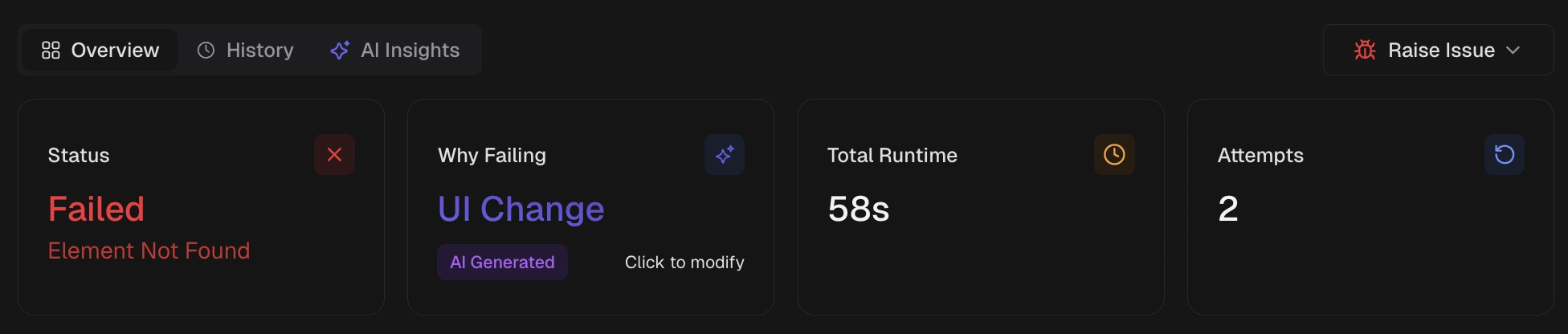
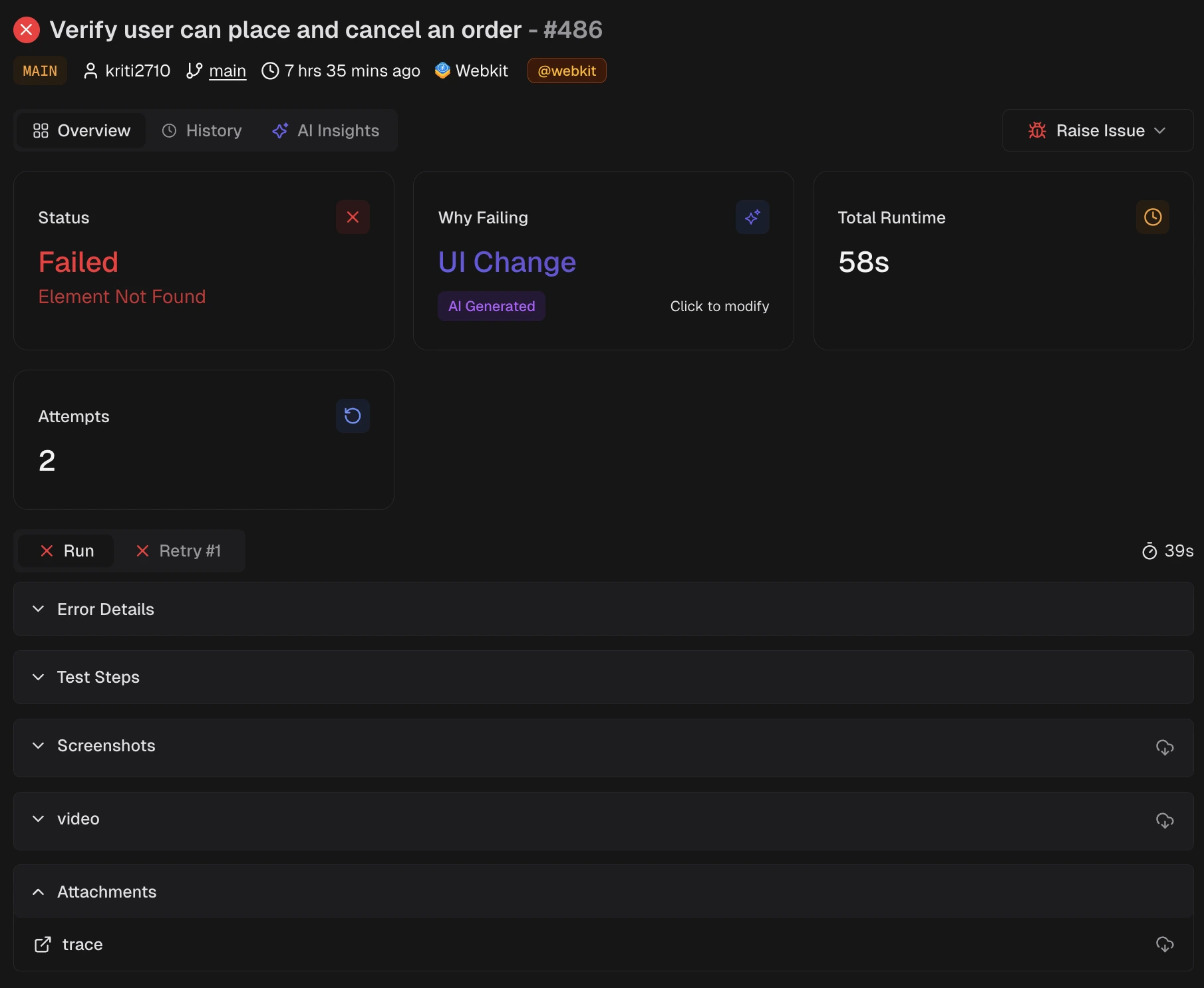
Open a test run and click on any failed test. The test case details page shows:- KPI tiles: Status, AI category, runtime, retry attempts
- Evidence tabs: One tab per attempt (Run, Retry 1, Retry 2)
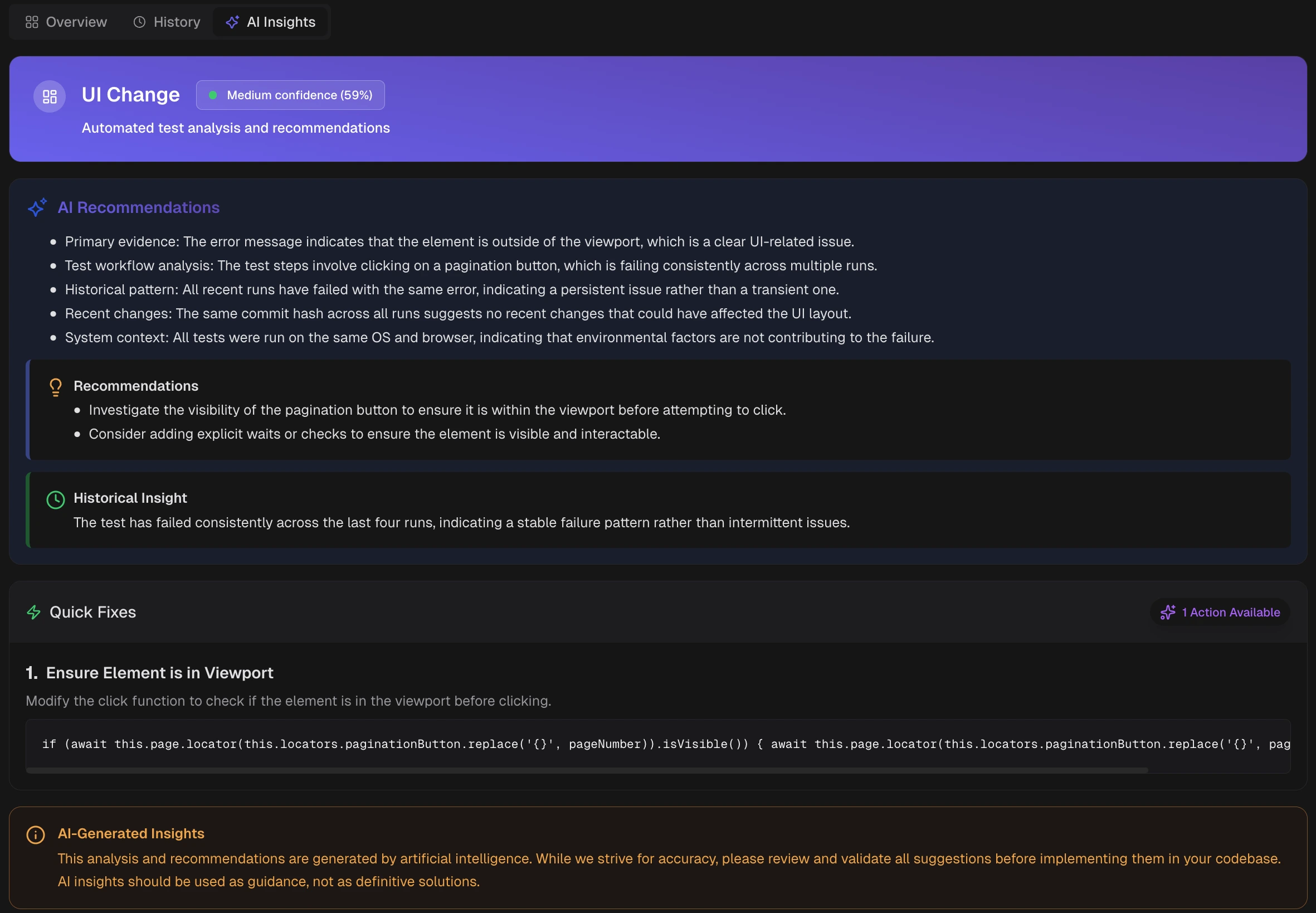
- AI Insights: Root cause analysis and suggested fixes
 Each evidence tab contains:
- Error details with stack trace
- Test steps with timing
- Screenshots
- Console output
- Video player
- Trace viewer link
- Visual comparison (for screenshot tests)
Debugging Workflow
Check the error message
Start with the error details. The message often points to the issue: assertion mismatch, element not found, or timeout.
Review the AI category
TestDino classifies failures as Actual Bug, UI Change, Unstable Test, or Miscellaneous. This determines whether to fix code, update selectors, or stabilize the test.
Open the trace
Traces provide the most detail: every action, network request, and DOM change. Use traces for complex failures.
AI Categories
| Category | What it means | Action |
|---|---|---|
| Actual Bug | Repeatable product defect | Fix application code |
| UI Change | Interface changed, test no longer matches | Update selectors or assertions |
| Unstable Test | Intermittent failure from timing or state | Stabilize the test |
| Miscellaneous | Environment or configuration problem | Fix infrastructure or CI |