

Quick Reference
The Trace Viewer has several panels, each displaying different execution details. Use this table to find the appropriate panel for your investigation.
See Playwright trace documentation for more options.
Enable Traces
Configure Playwright to record traces:| Value | Behavior |
|---|---|
'off' | No traces |
'on' | Trace every test |
'on-first-retry' | Trace only on retry (recommended) |
'retain-on-failure' | Keep traces for failed tests |
'on-first-retry' to balance debugging capability with test speed.
Upload Traces
Include traces in your upload:When to Use Traces
Traces are most useful for:- Race conditions: See if an element appeared after the test tried to interact
- Timing issues: Check how long each step took
- Network failures: Inspect API requests and responses
- Complex flows: Step through multi-page interactions
Open the Trace Viewer
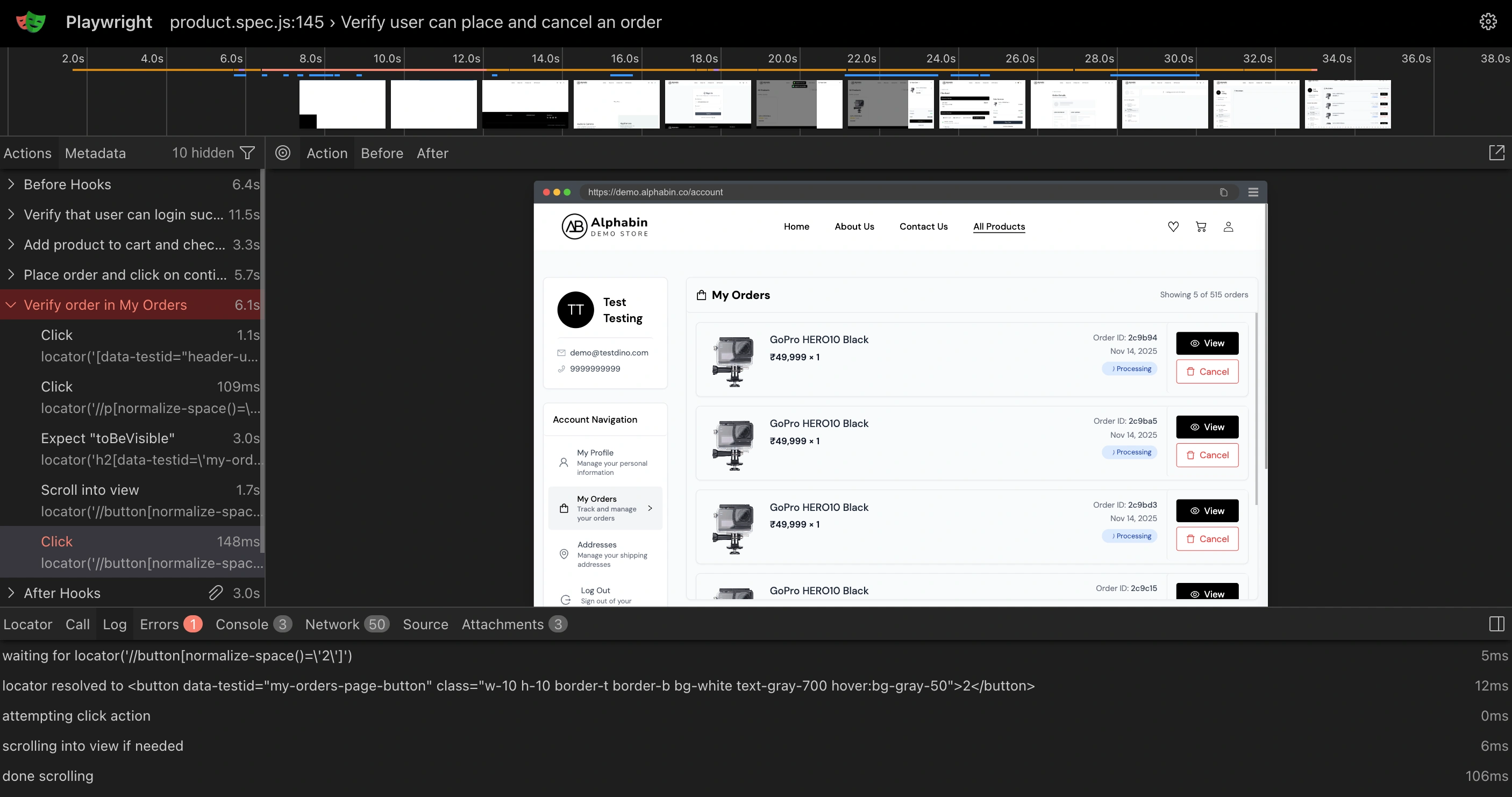
Navigate the Trace
Actions Panel
The left sidebar lists every action in execution order:page.gotolocator.clickexpect.toBeVisible
Timeline
The timeline at the top shows action duration. Long bars indicate slow steps. Gaps may indicate waiting or idle time.DOM Snapshot
Each action captures a DOM snapshot. Use it to see:- Whether the element existed
- What the page looked like at that moment
- If other elements were blocking the target
Network Tab
View all HTTP requests during the test:- Request URL, method, and headers
- Response status, headers, and body
- Timing breakdown (DNS, connect, SSL, wait, download)
Console Tab
Shows browser console output at each action:console.logfrom application code- JavaScript errors and warnings
- Failed resource loads
Source Tab
Displays the test code with the current action highlighted. Useful for correlating trace steps with your test file.Debug Common Failures
| Pattern | What to check |
|---|---|
| Element not found | DOM snapshot at failing step |
| Timeout | Timeline for long gaps, network for slow responses |
| Assertion mismatch | Expected vs actual in DOM snapshot |
| Race condition | Action order across runs |
Element Not Found
Element Not Found
- Go to the failed action
- Check the DOM snapshot
- Look for the target element
Timeout
Timeout
- Check the action duration in the timeline
- Look at the DOM snapshot before timeout
- Check the network tab for pending requests
Assertion Failure
Assertion Failure
- Go to the failed
expectaction - Check the Call panel for expected vs actual values
- Review the DOM snapshot to see the actual state
Race Condition
Race Condition
- Compare DOM snapshots before and after the action
- Check if elements appeared or disappeared between steps
- Look at network timing to see if responses arrived late