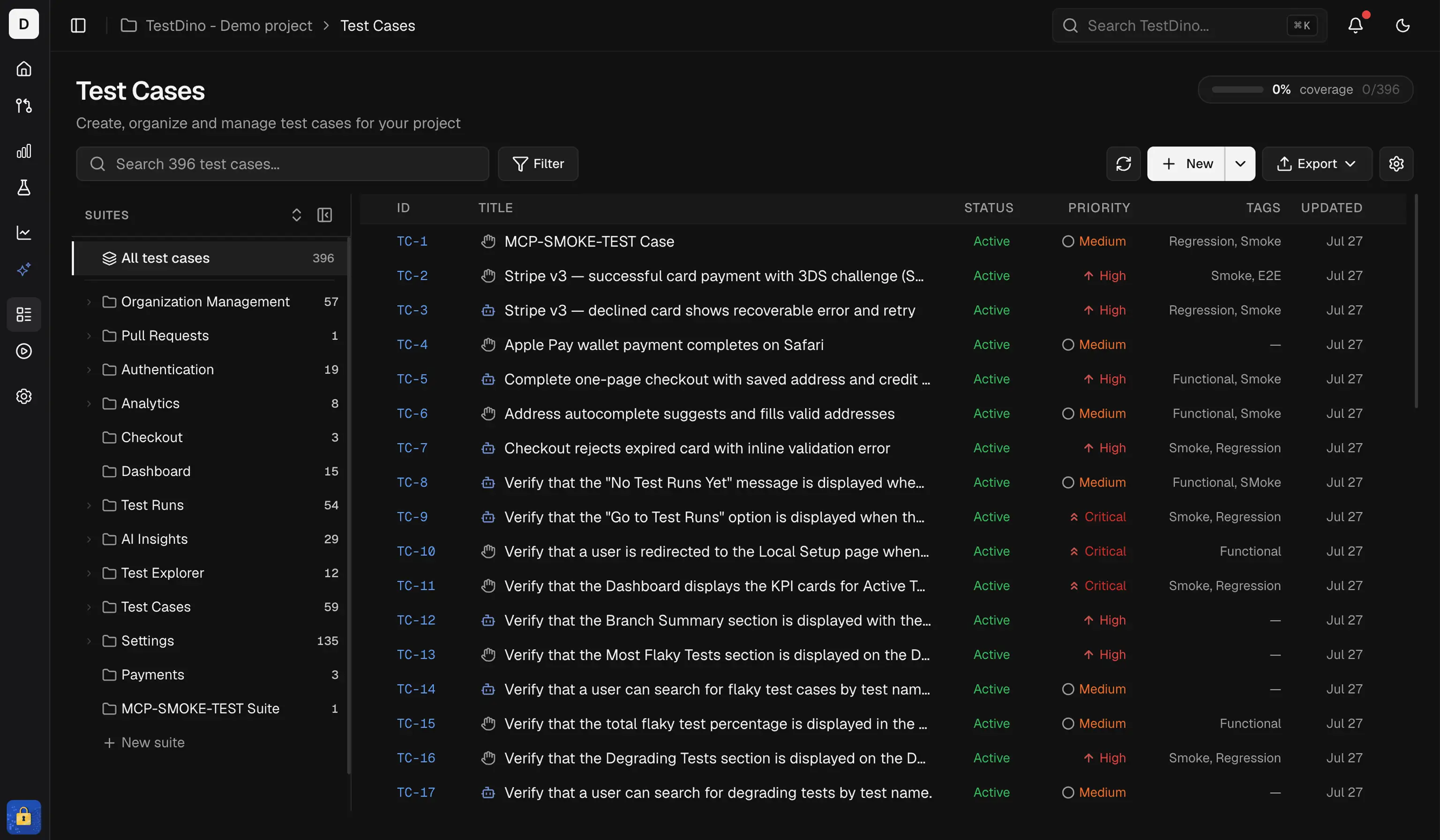
Test Case Management is a standalone workspace for creating, organizing, and maintaining manual and automated test cases within a project. Group test cases under suites and subsuites, manage classification and automation status, and track metadata. The layout includes a sidebar for suite hierarchy, a top bar for key actions, and a main panel for test cases in grid or list form.

Quick Reference

TopicLink
Key conceptsSuites, views, custom fields, attachments, version history
Workspace overviewKPI tiles, list/grid views, search, filters
Quick startCreate suites and add test cases
PermissionsAdmin, Editor, Viewer roles
LimitsSuite depth, attachments, field limits

Key Concepts

ConceptDescription
Suite HierarchyCreate nested suites (up to 6 levels) for structured test case grouping by module, feature, or team.
Viewing ModesToggle between List View (table) and Grid View (cards), each supporting quick edits, inline actions, and filtering.
Custom FieldsAdd project-specific fields (text, textarea, number, dropdown, checkbox) beyond the built-in set.
AttachmentsUpload screenshots, documents, or test data files to test cases (up to 5 per case).
Version HistoryTrack changes, compare versions, and restore previous states of any test case.
Import & ExportBulk import from CSV or TestRail. Export filtered or selected test cases as CSV.
Bulk OperationsMulti-select actions: update, move, tag, classify, or change statuses for many test cases at once.
Filter & SearchFind test cases by title, ID, status, priority, type, automation status, or tags.
Automation FieldsTrack automation readiness by marking test cases as Manual, Automated, or To Be Automated. Flag tests as Flaky or Muted.

Workspace Overview

KPI Tiles

KPI Tiles At the top of the Test Case Management tab, four KPI tiles summarize the state of all test cases in the workspace:
  • Total: The total number of test cases in the project.
  • Active: Test cases marked as ‘Active’ and ready for use.
  • Draft: Test cases in a draft state, not yet finalized.
  • Deprecated: Retired or outdated test cases kept for reference
These metrics update dynamically as test cases are added, deleted, or reclassified.

Views

The Test Cases page shows all test suites listed in a collapsible hierarchy. Clicking a suite expands it to show its test cases, and if that suite contains subsuites, those appear as nested sections as well. You can switch between two ways to view all test cases: List View and Grid View.

1. List View (Table Layout)

List View This is a high-density table format, ideal for bulk operations and scanning. It includes the columns for the Key, Title & Priority, Type, Tags, Status, Automation, and Severity.
Use checkboxes for bulk selection or the action menu on each test case row for individual actions.

2. Grid View (Card Layout)

Grid View This is a visual, card-based layout. Each card shows the Key, Title, Priority, Severity, Status, Automation, and Tags

Search Functionality

You can search by test case name (Title) or by its Key (ID) (e.g., TC-6297). The list filters in real-time as you type.

Available Filters

To the right of the search bar, there are five filter dropdowns to refine the test cases shown:
  1. Status: Filter by Active, Draft, or Deprecated.
  2. Automation: Filter by Manual, Automated, or To Be Automated.
  3. Priority: Filter by Critical, High, Medium, Low, or Not Set.
  4. Type: Filter by any test type (Functional, Smoke, Regression, E2E, API, and more).
  5. Tags: Filter by one or more user-defined labels.
Combine multiple filters for precise queries. For example, filter for: [Status: Active] + [Priority: High] + [Tags: smoke] = See all high-priority, active smoke tests.

Quick Start Steps

1. Open the Test Cases tab

Go to your project and select Test Cases from the navigation bar. This opens the Test Case Management workspace.

2. Create your first suite

In the Suite Sidebar, click the New Suite button to create a new suite or subsuite. Use suites to group related test cases under feature, module, or component names.

3. Add test cases

Use the New Test Case button in the toolbar to open the full creation form. You can also add test cases directly within a suite or from the suite’s context menu.
Fill in Title, Priority, Status, and Tags. Add test steps or link to automated spec files. Save and organize into suites.
For bulk operations, see Import and Export.

Permissions

ActionAdminEditorViewer
View test casesYesYesYes
Create / edit test casesYesYesNo
Delete test casesYesYesNo
Import test casesYesYesNo
Export test casesYesYesYes
Manage settings (custom fields, attachments, version history)YesNoNo

Limits

ItemLimit
Suite nesting depth6 levels
Attachments per test case5 files
Custom field dropdown options50 per field
Tags per test caseUnlimited
Title length500 characters
Description length5,000 characters