

Pick an upload mode
The orb supports 4 upload modes. Pick one based on what you want in the dashboard.Prerequisites
- A TestDino account with a project created
- A TestDino API key (Generate API Keys)
- TestDino Example Repository for sample tests and ready-to-use CI configs
- A CircleCI account with access to your repository
- Playwright configured with JSON and HTML reporters in
playwright.config.js:
playwright.config.js
Add the Environment Variable
- Open your project in CircleCI
- Go to Project Settings → Environment Variables
- Click Add Environment Variable
- Set the name to
TESTDINO_TOKEN - Paste your TestDino API key as the value
- Save the variable
Basic Upload
.circleci/config.yml: Basic upload
.circleci/config.yml: Basic upload
.circleci/config.yml
Upload with HTML Report
.circleci/config.yml: Upload with HTML report
.circleci/config.yml: Upload with HTML report
.circleci/config.yml
Upload Full Bundle
Include all artifacts (JSON, images, videos) in one upload..circleci/config.yml: Upload full bundle
.circleci/config.yml: Upload full bundle
.circleci/config.yml
Upload with Custom Paths
Specify custom report paths and include images and videos..circleci/config.yml: Upload with custom paths
.circleci/config.yml: Upload with custom paths
.circleci/config.yml
Orb Parameters
Container Parallelism
For larger test suites, CircleCI parallelism splits tests across multiple containers. Each container uploads its own report, and TestDino groups them into one run when they share aci-run-id.
How it works
- CircleCI runs Playwright across 4 containers using
parallelism: 4 - Each container writes its results to its own report directory
- The orb uploads each report with the same
ci_run_idso TestDino merges them into a single run - No merge job runs after the containers finish
Full sharded config
.circleci/config.yml: Sharded config
.circleci/config.yml: Sharded config
.circleci/config.yml
Key details
Pipeline execution
After the workflow runs, CircleCI shows all shard containers in the pipeline view. Each container uploads its report, and TestDino merges them into one run.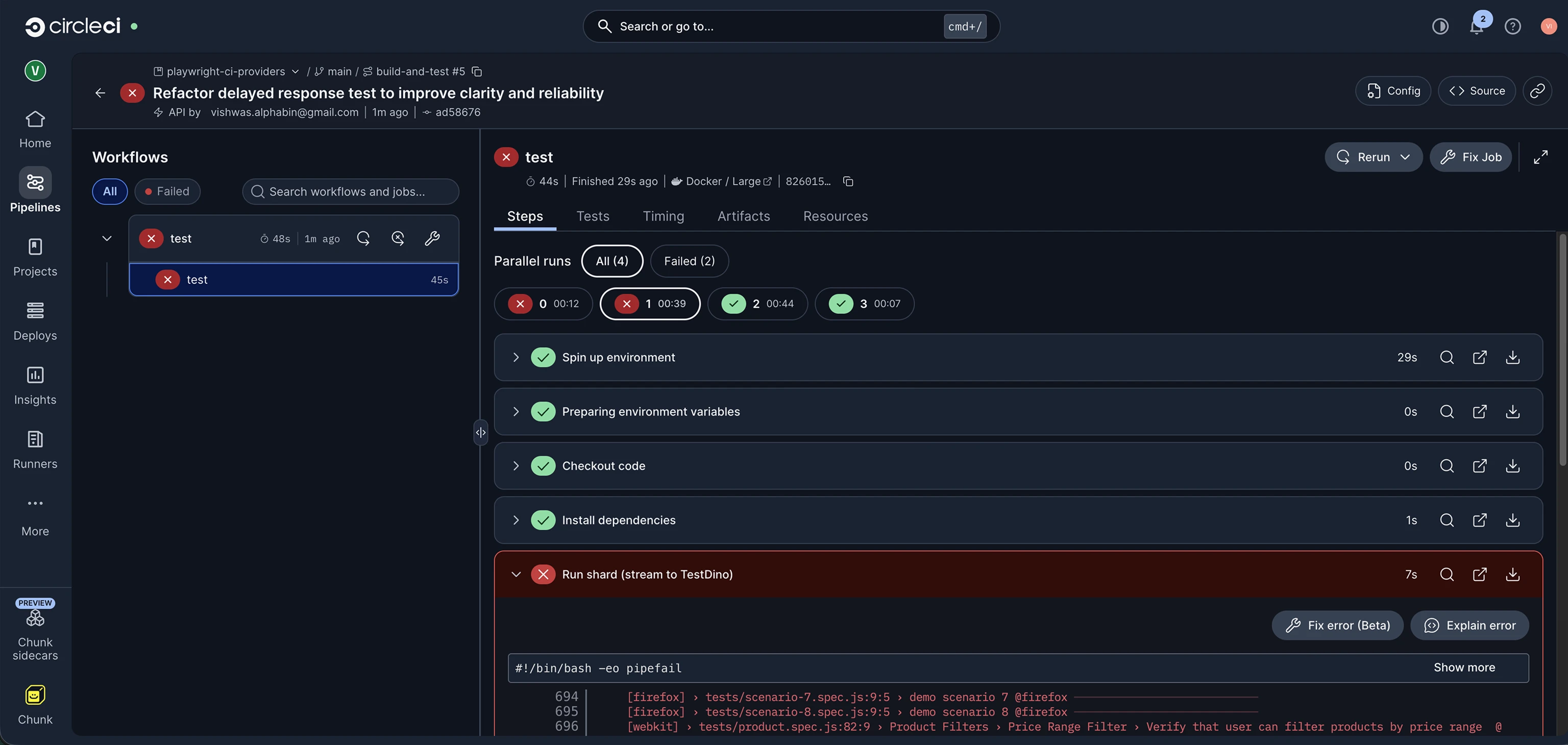
Results in TestDino
The test run appears in your TestDino dashboard with full failure details, flaky detection, and trend data once the shards finish uploading.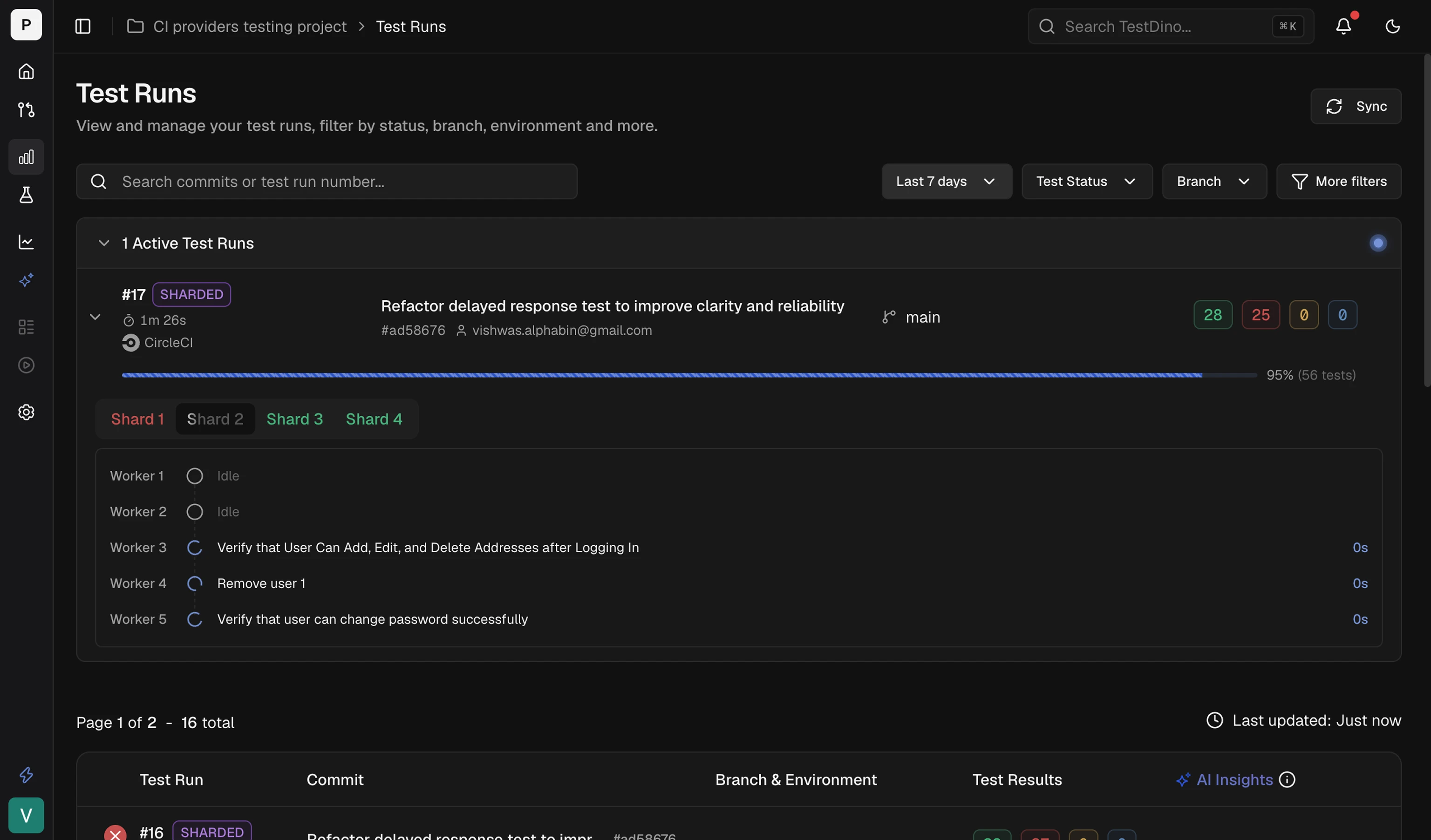
Troubleshooting
Orb not found or version error
Orb not found or version error
Ensure the orb is imported correctly:
testdino: testdino/testdino@1.0.0. Check the CircleCI Orb Registry for the latest version.TESTDINO_TOKEN not found
TESTDINO_TOKEN not found
Confirm the environment variable is set in CircleCI → Project Settings → Environment Variables. If using contexts, verify the job references the correct context name.
Related
CI Optimization
Reduce CI time with smart reruns
Environment Mapping
Route test results to Dev, Staging, or Production by branch
Integrations
Connect Slack, Jira, Linear, Asana, and more
TestDino MCP
Access test results and fix issues with AI agents