

Columns
Test Explorer lists every test case in a single table. Each row shows the test title and its metrics across the selected time period and filters. Click a column header to sort.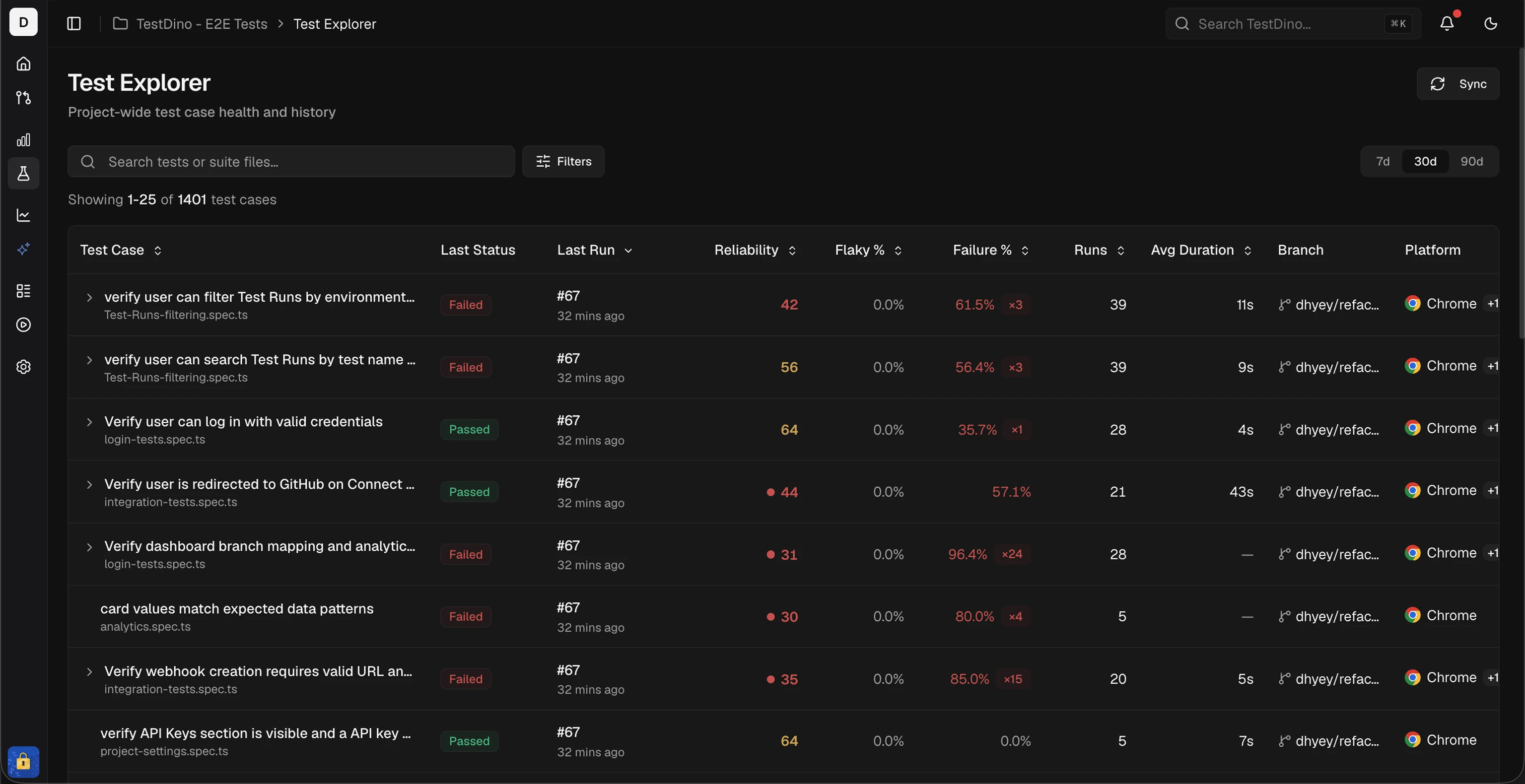
Filters & Search
Search
Filter by spec file name or test case title using the search bar. Search supports regex for advanced pattern matching.Filters
Activating filters updates the results count and table data immediately.
Sync
Click the sync button (top-right) to refresh data without reloading the page.Detail Drawer
Click any test case row to open the details drawer. The drawer contains 2 tabs.
Overview Tab
- Test Run History displays the most recent executions with status, timestamp, and duration. Click a run to open the full test run details page.
- Platform Analytics breaks down executions, failures, flaky count, and average duration by browser or platform.
- Environment Analytics shows the same breakdown by environment (e.g., production, staging). Average duration here counts passed runs only, so it matches the average in the panel header. A failed or cut-off run does not measure how long the test takes.
Errors Tab
Displays unique error messages aggregated across all executions of the test case. Each error entry shows:
Use the Errors tab to identify recurring failures and track whether fixes have resolved them.
Get Started
- Set scope. Use Time Period and Environment filters to narrow the dataset.
- Identify targets. Sort by Failure % or Flaky % to surface unstable tests. Sort by Avg Duration to find slow tests, or by Reliability to rank overall health.
- Inspect details. Click a test case to view execution history, platform breakdowns, and error patterns.
Pagination
Large datasets load in pages. Click Load More Test Cases at the bottom of the table to fetch the next batch.Related
Test Runs
View all test executions
Test Cases
Manage and organize test cases
Analytics
Project-wide test analytics
Flaky Tests
Detect and fix flaky tests