

Prerequisites
- A TestDino project with test runs uploaded (Getting Started)
- A Linear account with permission to create issues
- A Linear team to file issues into
Connect Linear to TestDino
Open the Integrations page
Go to Settings → Integrations in your TestDino project. Open the Linear tile, then click Connect Linear in the panel.
Authorize your Linear account
TestDino redirects you to Linear to authorize access. Sign in and approve the request. TestDino requests permission to read workspaces, teams, and create issues.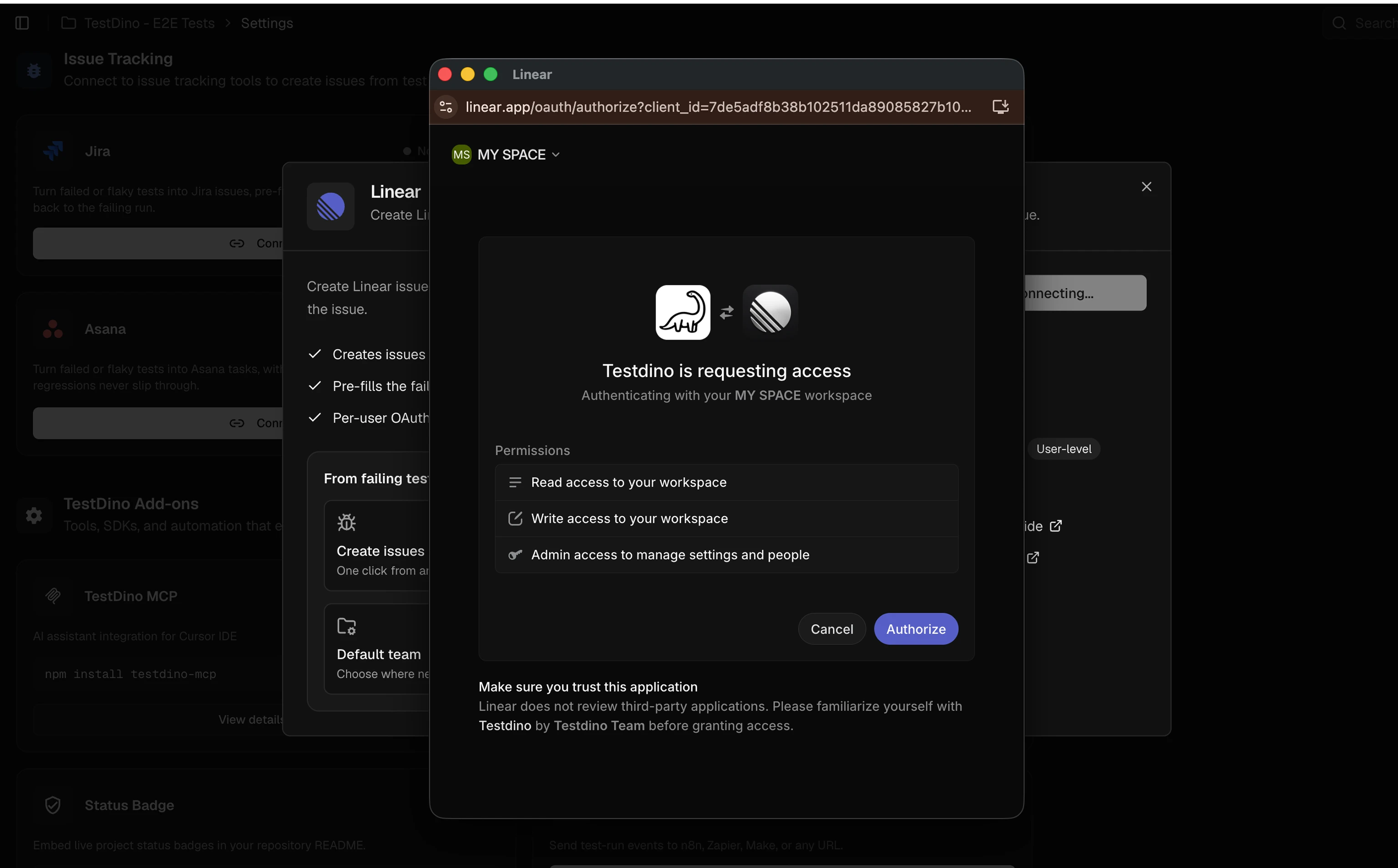
Configure defaults
After authorization, select the default Workspace and Team where issues will be created. You can change these per issue when creating a bug report.
NoteThe default team is a convenience setting. You can select a different team each time you create an issue.
Create a Linear Bug Report
Create Linear issues directly from failed or flaky test cases. Each issue includes test metadata, so your team has full context without opening separate reports.1
Open a Test Run
Navigate to a Test Run in TestDino.
2
Select a test case
Choose a failed or flaky test case from the run.
3
Raise Issue
Click Raise Issue and select Linear.
4
Configure & Create issue
Select the Workspace and Team. Set Issue Type, Priority, Labels, and Assignee as needed. Review the Summary and Description (auto-generated from failure data). Use the Write/Preview toggle to verify formatting. Click Create to file the issue in Linear.
5
Confirm creation
TestDino shows a confirmation with the Linear issue key and internal ID with a copyable URL. Click View in Linear to open the issue and continue triage.
What TestDino Pre-fills
Every issue is created with structured context so the developer receiving it has everything needed to investigate.Troubleshooting
Teams or labels not showing in the form
Teams or labels not showing in the form
- Click Sync on the Linear card in Settings → Integrations to refresh teams, labels, and templates from Linear
- Verify your Linear account has access to the workspace and team you expect to see
Issue created but formatting looks wrong
Issue created but formatting looks wrong
- Use the Write/Preview toggle in the bug report form to verify markdown formatting before submitting
- Linear renders markdown in issue descriptions. Complex code blocks may need manual adjustment