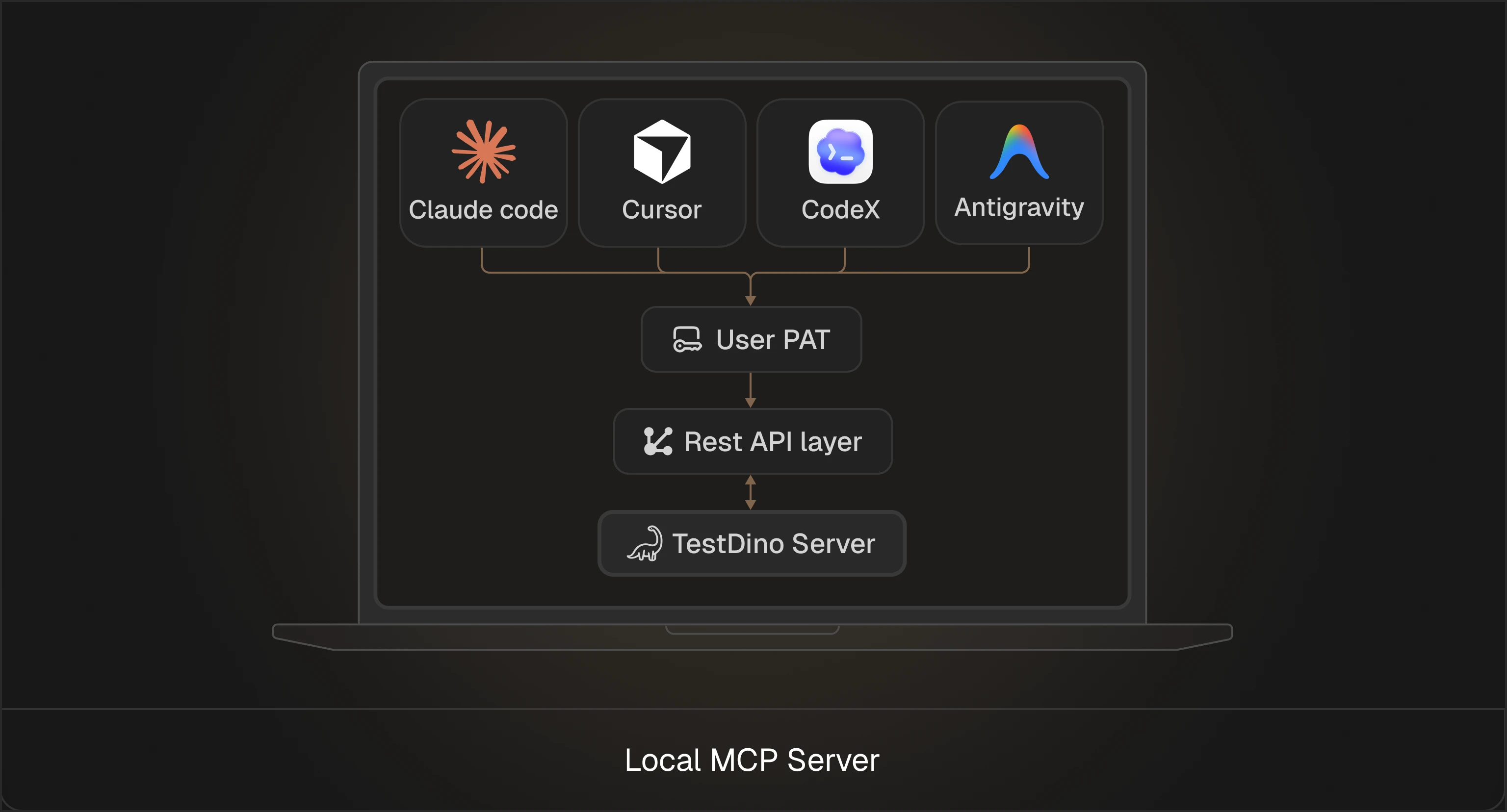
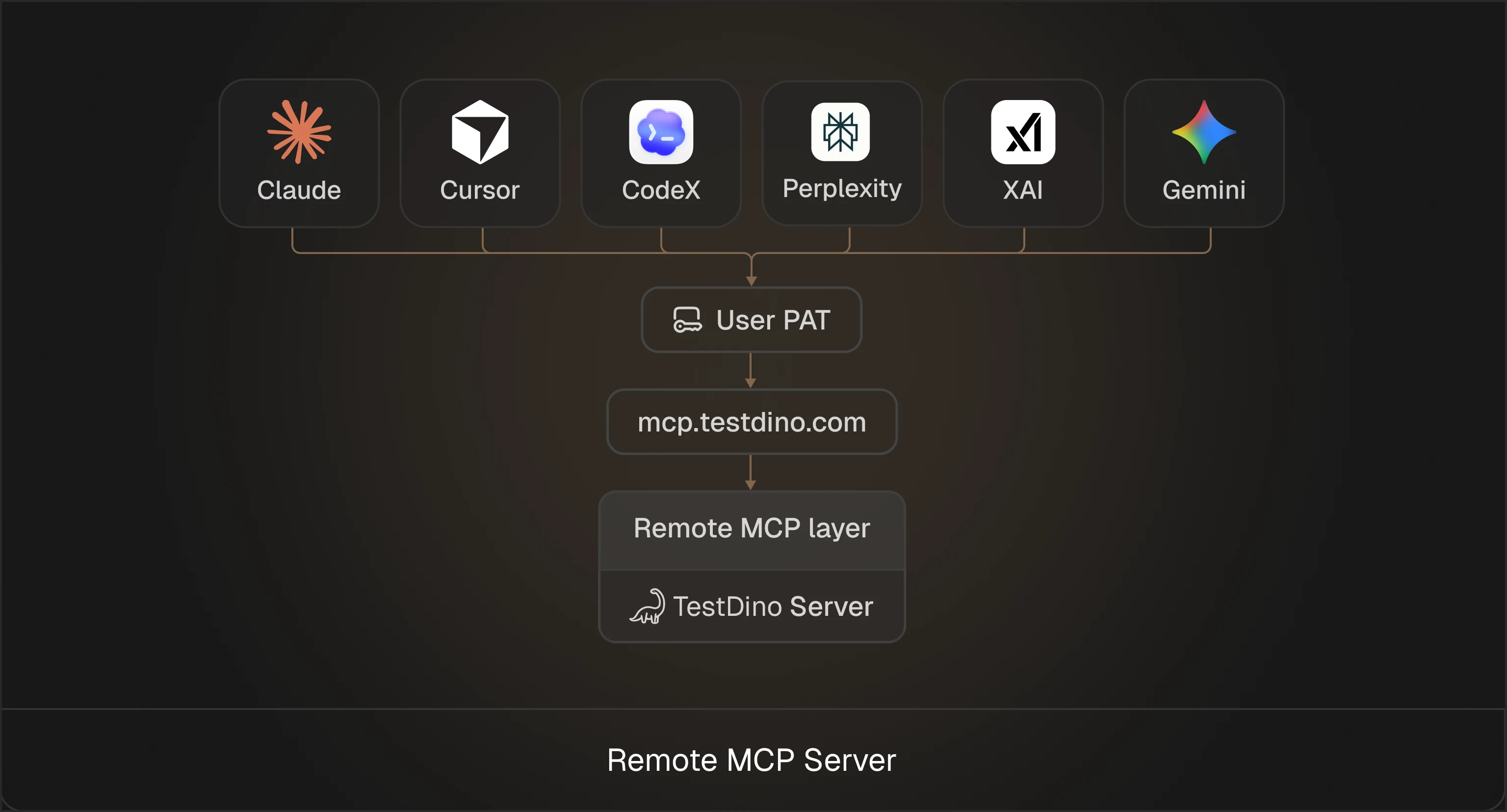
TestDino MCP Server connects Claude Code, Cursor, Claude Desktop, and other MCP-compatible clients to your TestDino workspace to query test run data, artifacts, and manual test cases directly from your IDE. MCP (Model Context Protocol) is an open standard that defines how an assistant communicates with external tools through a consistent interface.

Prerequisites

  • A TestDino account with at least one project
  • Node.js installed (so npx works)
  • An MCP client: Claude Code, Cursor, or Claude Desktop

Quick Start

1

Install the MCP server

Try without installing:
npx -y testdino-mcp
Or install globally:
npm install -g testdino-mcp
Your MCP client starts the server as a local process. npx is easiest for evaluation, and a global install is convenient for daily use.
2

Create a Personal Access Token

You will paste this token into your MCP client config as TESTDINO_PAT.
  1. Sign in to app.testdino.com
  2. Click your profile → User settings
User settings navigation showing profile menu and settings link
  1. Go to Personal access tokensGenerate new token
  2. Set a Token Name (e.g., mcp server) and Expiration (30 to 365 days)
Generate new token form with name and expiration fields
  1. Grant access to at least one project with Test runs, Manual tests, or both
  2. Click Generate token and copy it immediately
The token is shown once and cannot be retrieved later. Store it in a password manager. Never commit tokens to Git. Use separate tokens for separate contexts (local MCP, CI, scripts). Revoke tokens you no longer use.
3

Configure your MCP client

Pick your client and add the server entry.
Run in your terminal:
claude mcp add testdino -- npx -y testdino-mcp --pat your-token
No restart needed. Verify with:
claude mcp list
You should see testdino in the output.
4

Validate the connection

Ask your assistant:“Run health and confirm it can see my organisations and projects.”health verifies three things: the server is running, the token is loaded, and TestDino is reachable. See Troubleshooting if it fails.

Example Prompts

Test Run Analysis

PromptWhat it does
Show test runs within the last hour in project xyzLists recent runs with status and metadata
Which are the most flaky test cases from the recent 10 runs?Ranks tests by flaky rate across runs
Show me all failed tests from the last runFilters test cases by failure status
List flaky tests on main from the last 7 daysFlaky tests filtered by branch and time window
Show tests tagged @auth, @smoke that failed in productionFilters by tag, status, and environment
Debug the test case “visual.spec.js” on developmentRoot cause analysis with fix suggestions
Summarize which test broke in branch “main”Quick failure summary for a branch

Manual Test Case Management

PromptWhat it does
List all critical priority test cases in the checkout suiteFilters manual cases by priority and suite
Find manual test cases tagged @auth that are not automatedFilters by tag and automation status
Show me the steps for test case TC-456Full test case details including steps
Create a new test case for password reset in AuthenticationCreates a case in the specified suite
Update TC-789 to change its status to deprecatedUpdates fields on an existing case
Create a test suite called “Payment Processing”Creates a new suite for organizing cases

Next Steps

Tools Reference

Full parameters, input schemas, and video demos for all 12 tools

Troubleshooting

Error messages, fixes, and editor-specific solutions